Decryption Policy Settings
How to configure recommended the following best practice settings for your decryption policy:
-
Default action Do Not Decrypt.
-
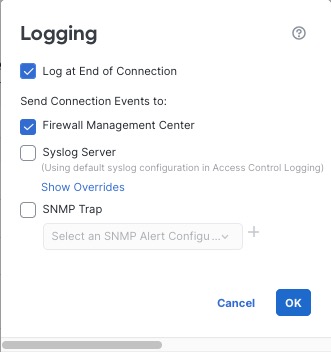
Enable logging.
-
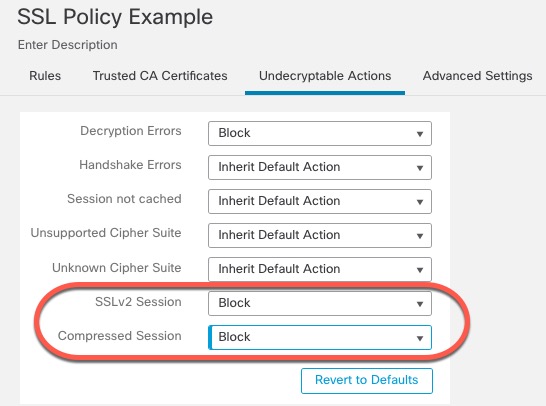
Set Undecryptable Actions to Block for both SSL v2 Session and Compressed Session.
-
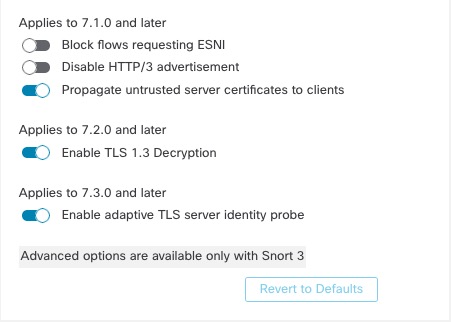
Enable TLS 1.3 decryption in the policy's advanced settings.
Procedure
Step 1 | Click . |
Step 2 | Click Edit ( |
Step 3 | From the Default Action list at the bottom of the page, click Do Not Decrypt. The following figure shows an example.
|
Step 4 | At the end of the row, click Logging ( |
Step 5 | Select the Log at End of Connection check box. The following figure shows an example.
|
Step 6 | Click OK. |
Step 7 | Click Save. |
Step 8 | Click the Undecryptable Actions tab. |
Step 9 | We recommend setting the action for SSLv2 Session and Compressed Session to Block. You shouldn't allow SSL v2 on your network and compressed TLS/SSL traffic is not supported so you should block that traffic as well. See Default Handling Options for Undecryptable Traffic for more information about setting each option. The following figure shows an example.
|
Step 10 | Click the Advanced Settings tab page. |
Step 11 | Select the Enable TLS 1.3 Decryption check box. For more information about the other options, see Decryption Policy Advanced Options.
|
Step 12 | At the top of the page, click Save. |


 )
)
What to do next
Configure decryption rules and set each one as discussed in Decryption Rule Settings.