Configure network connections

Configure private resources and the devices that protect these resources to complete the Universal ZTNA configuration.

The final step in configuring Universal ZTNA is to configure private resources and the devices that are responsible for protecting the resources.

Before you begin

Complete the tasks discussed in Configure Security Devices.

Procedure


Step 1

In Security Cloud Control, click Products > Secure Access.

The Secure Access product menu appears in the left navigation bar.

Step 2

Click Resources > Destinations > Private Resources.

Add private resources. For guidance, refer to Manage Private Resources.

Note

When you add a private resource, select the zero-trust connections method of endpoint connections. This selection enables client-based zero trust access for the private resource.

Step 3

Click Secure > Access Policy.

Add or edit access rules. For more information, refer to Manage the Access Policy.

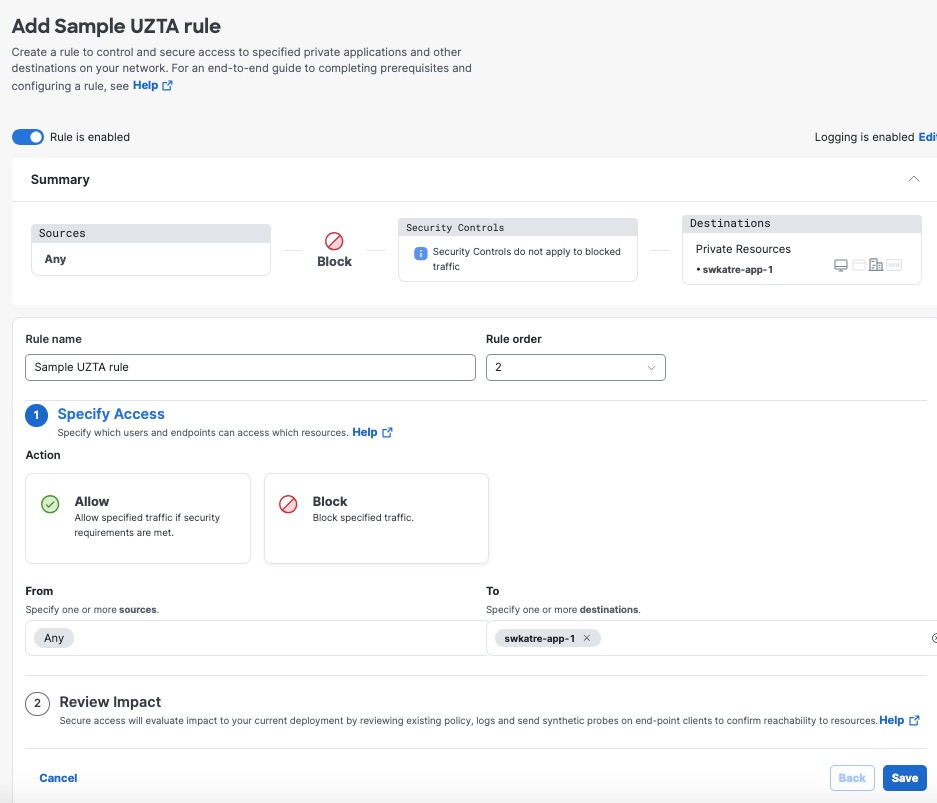
This sample access rule blocks access to a destination named swatw-app-1 :

The access rule configuration blocks access to the destination swatw-app-1, illustrating the available devices set up for universal zero trust network access.

Step 4

Click Connect > Network Connections.

Step 5

Click the FTDs tab.

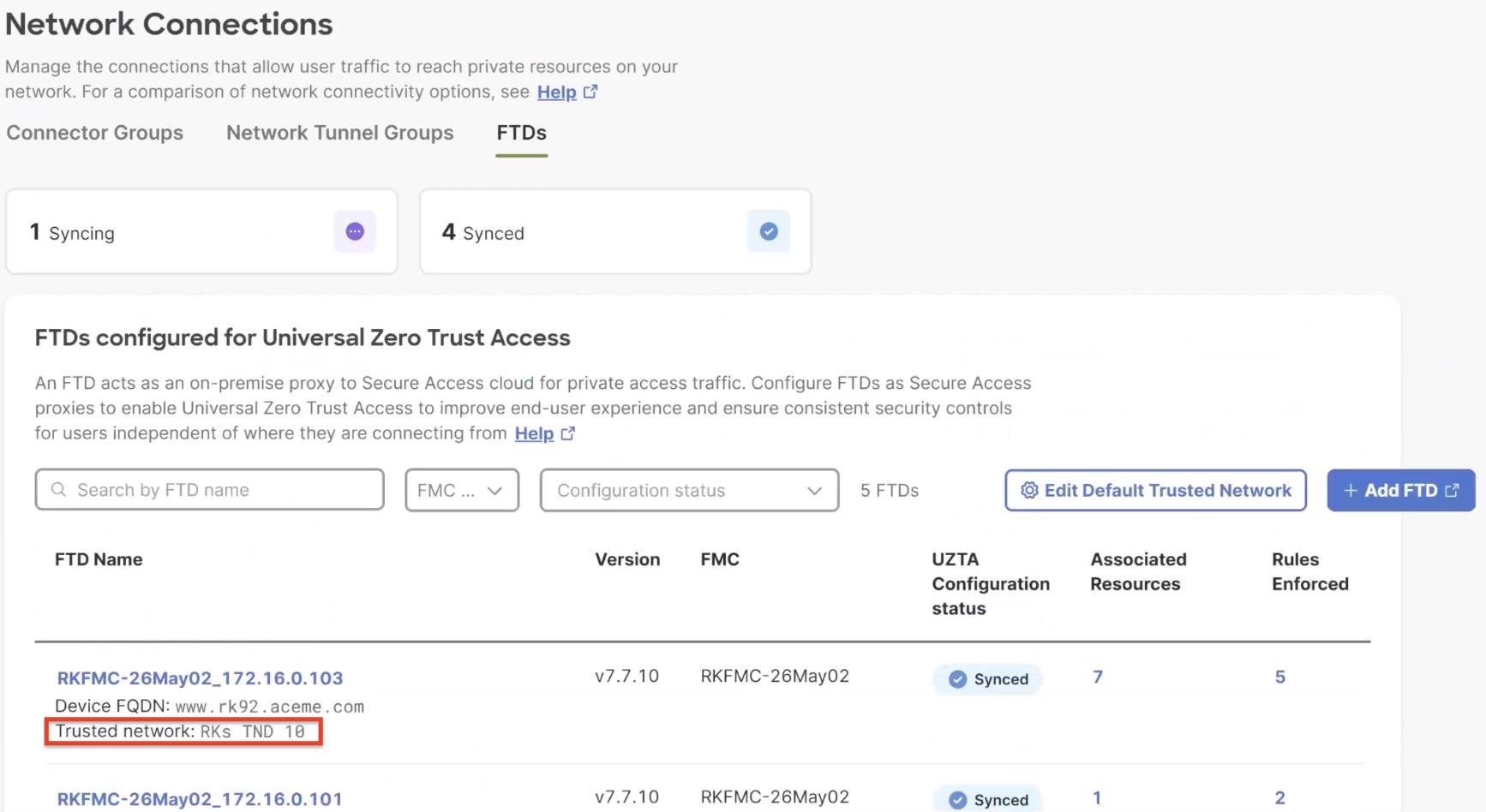
The page displays the available Secure Firewall Threat Defense devices configured for universal zero trust network access.

The image illustrates the available devices configured for universal zero trust network access, highlighting the importance of associating devices with a trusted network to enforce traffic policies.

Before proceeding to the next step, ensure that the device is associated with a trusted network. This association enforces policies on traffic originating from the trusted network.

After onboarding a Threat Defense device, it is automatically associated with a default trusted network if one exists. If not, you must create a trusted network and associate it with the Threat Defense device.

Step 6

Click the name of a Threat Defense device to configure.

Step 7

In the right pane, click Associate Resources.

Note
  • Only those resources that are enabled for zero trust access can be associated with a Threat Defense device.

  • A Threat Defense device must have connectivity to the associated private resources.

  • Resources associated with a Threat Defense device are shared with other devices that have the same FQDN.

Step 8

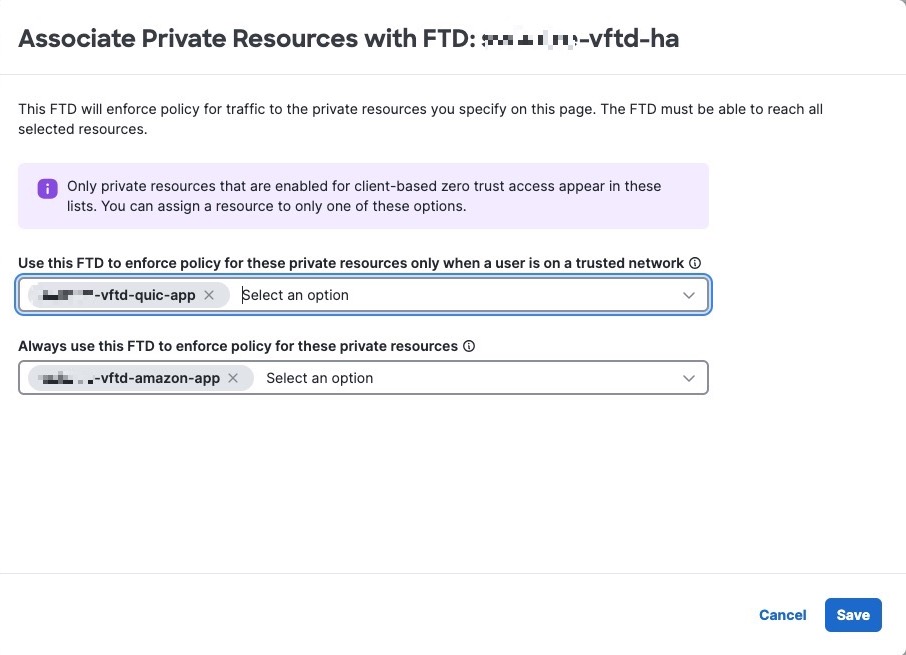
In the Associate Private Resources dialog box, make the following selections to specify the access policy enforcement and traffic flow for a user:

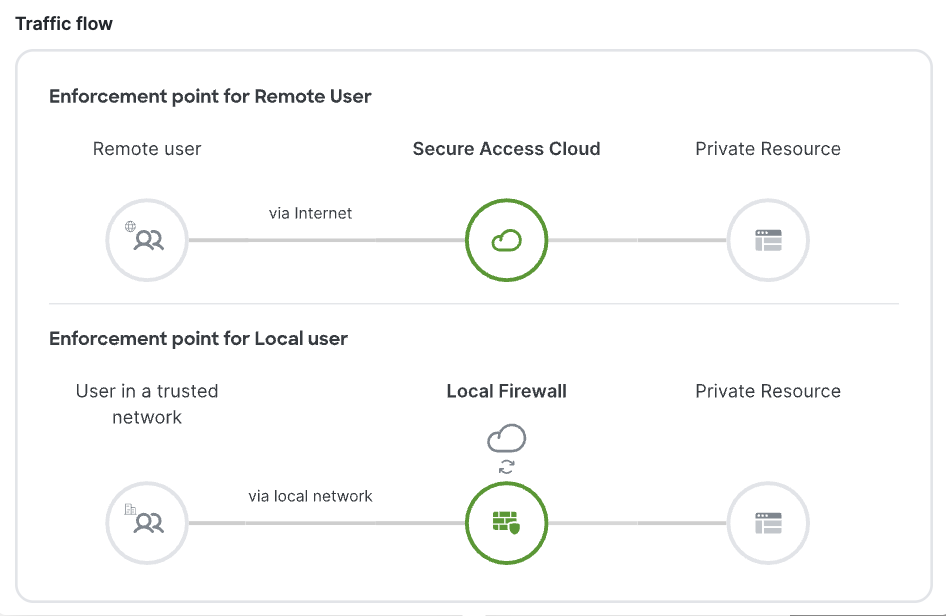
  • Use Threat Defense device to enforce policy only for on-premises users: From the Use this FTD to enforce policy drop-down list, select the private resources that a user should access only from an on-premises location.

    The image illustrates the configuration options for a Threat Defense device, highlighting the settings for enforcing policy based on user location, including on-premises and remote access.
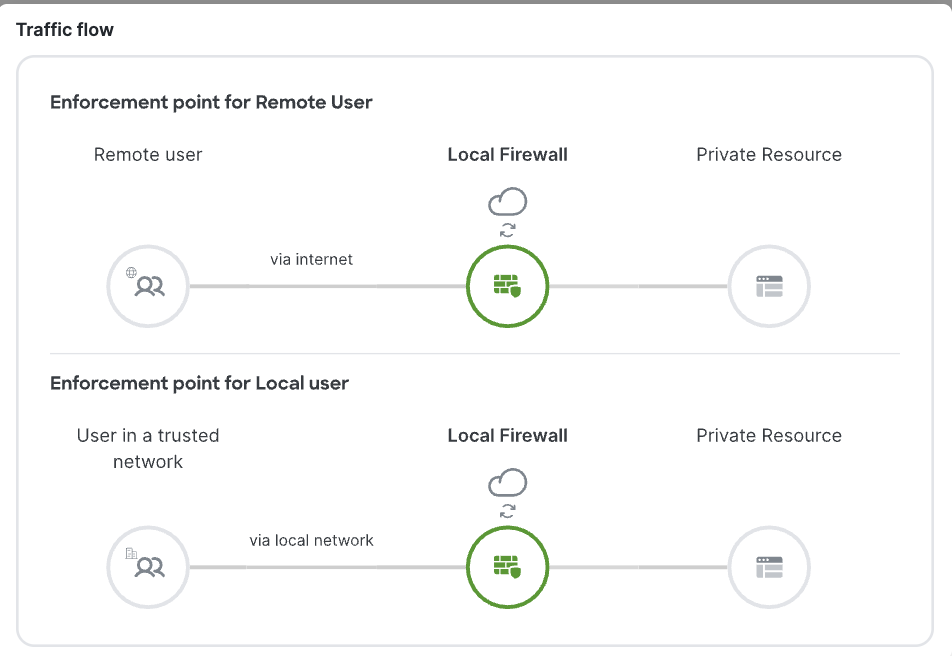
  • Use Threat Defense device to enforce policy for both on-premises and remote users: From the Always use this FTD to enforce policy drop-down list, select the private resources for which the selected Threat Defense device always enforces policy, regardless of whether the user is on-premises or remote.

    The figure illustrates the configuration of a Threat Defense device enforcing access rules for the vftd-quic-app for on-premises users and the vftd-amazon-app for all users, regardless of their location.

The following figure shows an example of using a Threat Defense device to enforce access rules for the vftd-quic-app for on-premises users and vftd-amazon-app for all users, whether on-premises or remote.

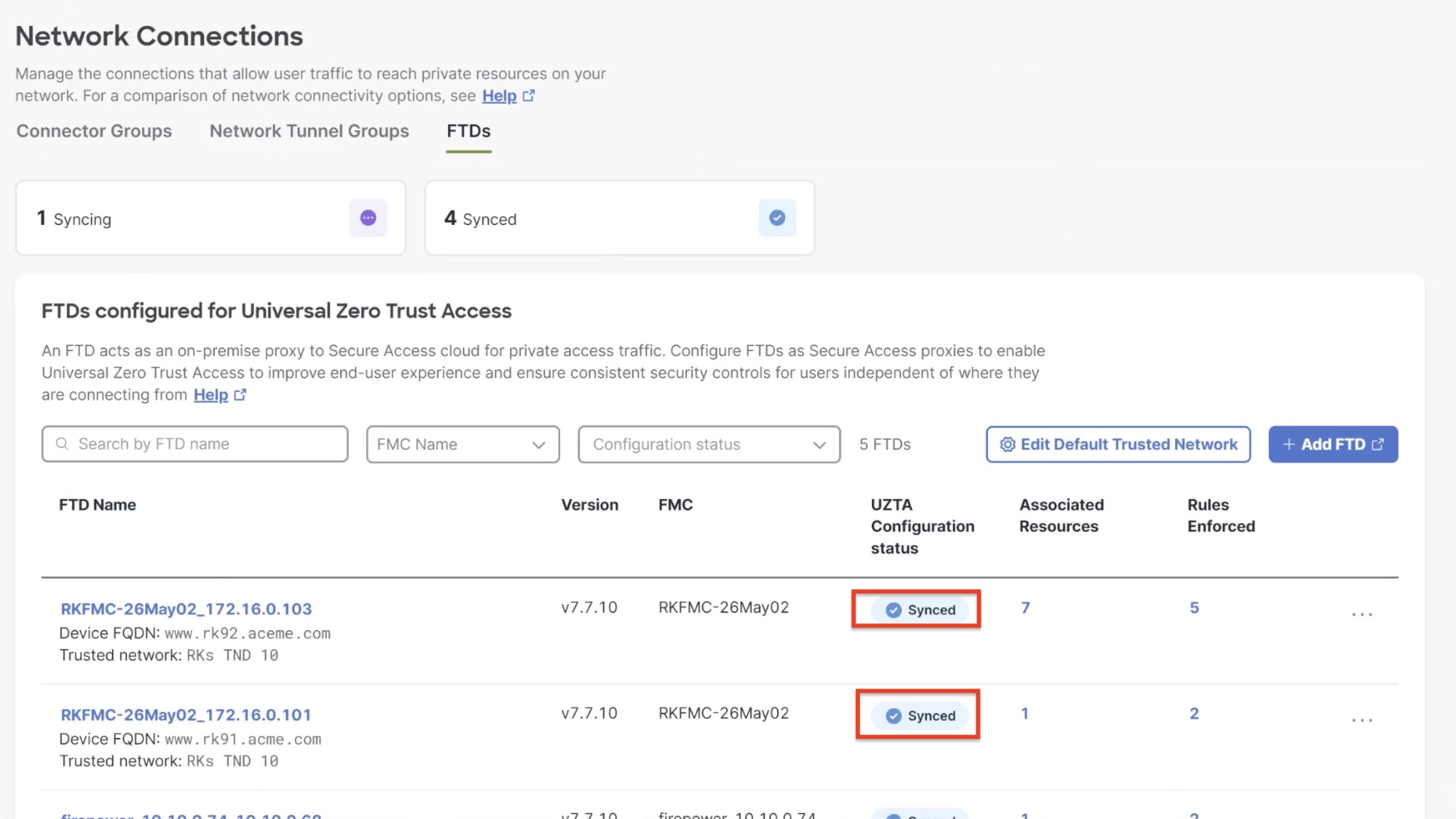
The figure illustrates the configuration of a Threat Defense device enforcing access rules for the vftd-quic-app and vftd-amazon-app, with the UZTA Configuration status indicating Synced.

Step 9

Click Save.

The configurations are applied to the device, and the UZTA Configuration status column for the device displays Synced.

The following figure shows an example.

The figure illustrates the configuration of a Threat Defense device enforcing access rules for the vftd-quic-app and vftd-amazon-app, highlighting the Synced status in the UZTA Configuration column.

Configuration status can also be:

  • Syncing—updates to the Threat Defense device are ongoing.

  • Out of sync—modifications to Secure Access configurations are pending update to the Threat Defense device.

  • Failed to sync—configurations were not updated on the Threat Defense device.

To view a detailed status for each resource and rule associated with a Threat Defense device, complete these actions:

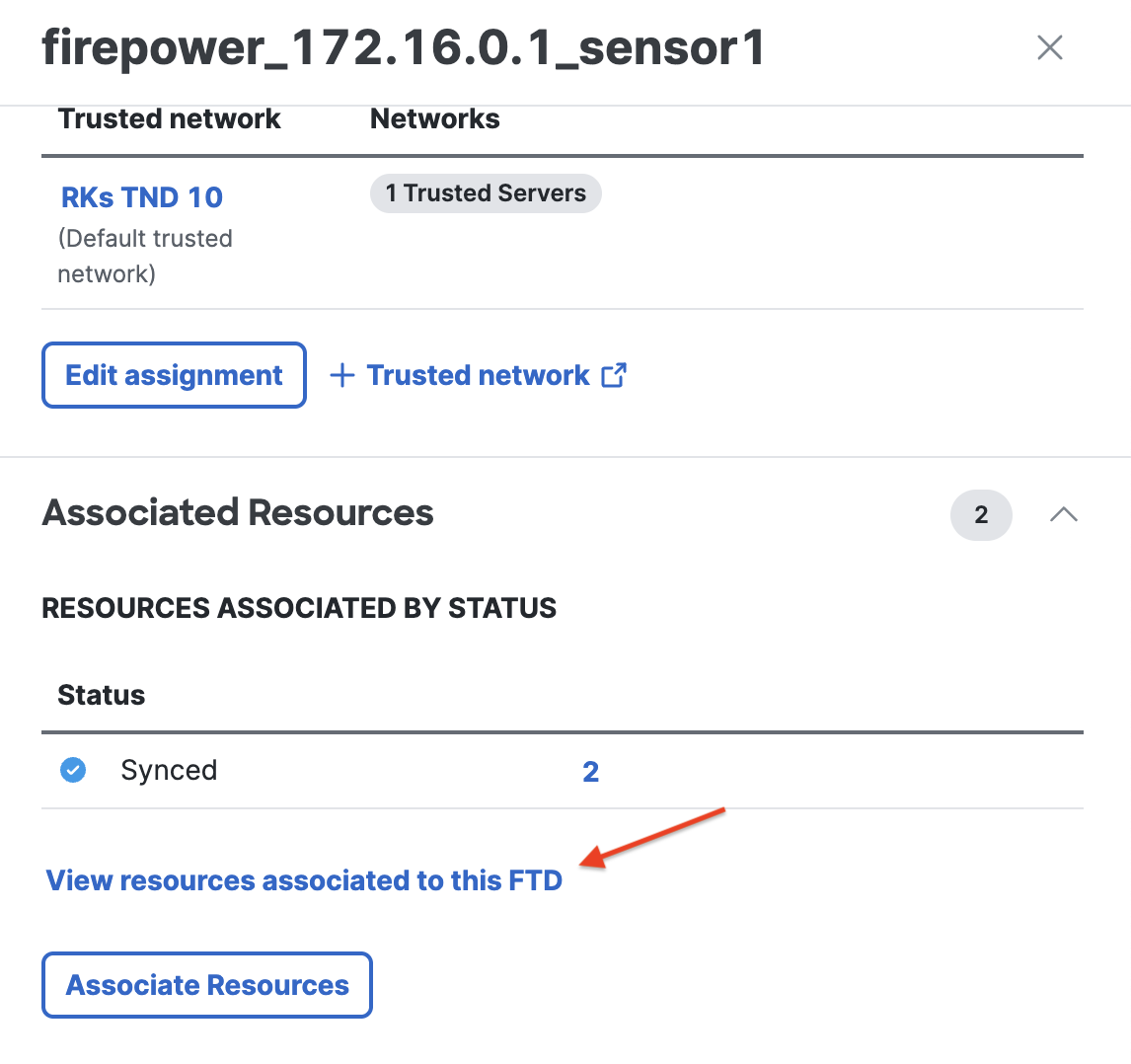
  1. Click the numeral in the Associated Resources column.

    In the slide-in pane, under the Associated Resources section, click View resources associated with this FTD.

    The image illustrates the configuration status of resources and rules associated with a Threat Defense device, highlighting the failure to sync and update configurations.

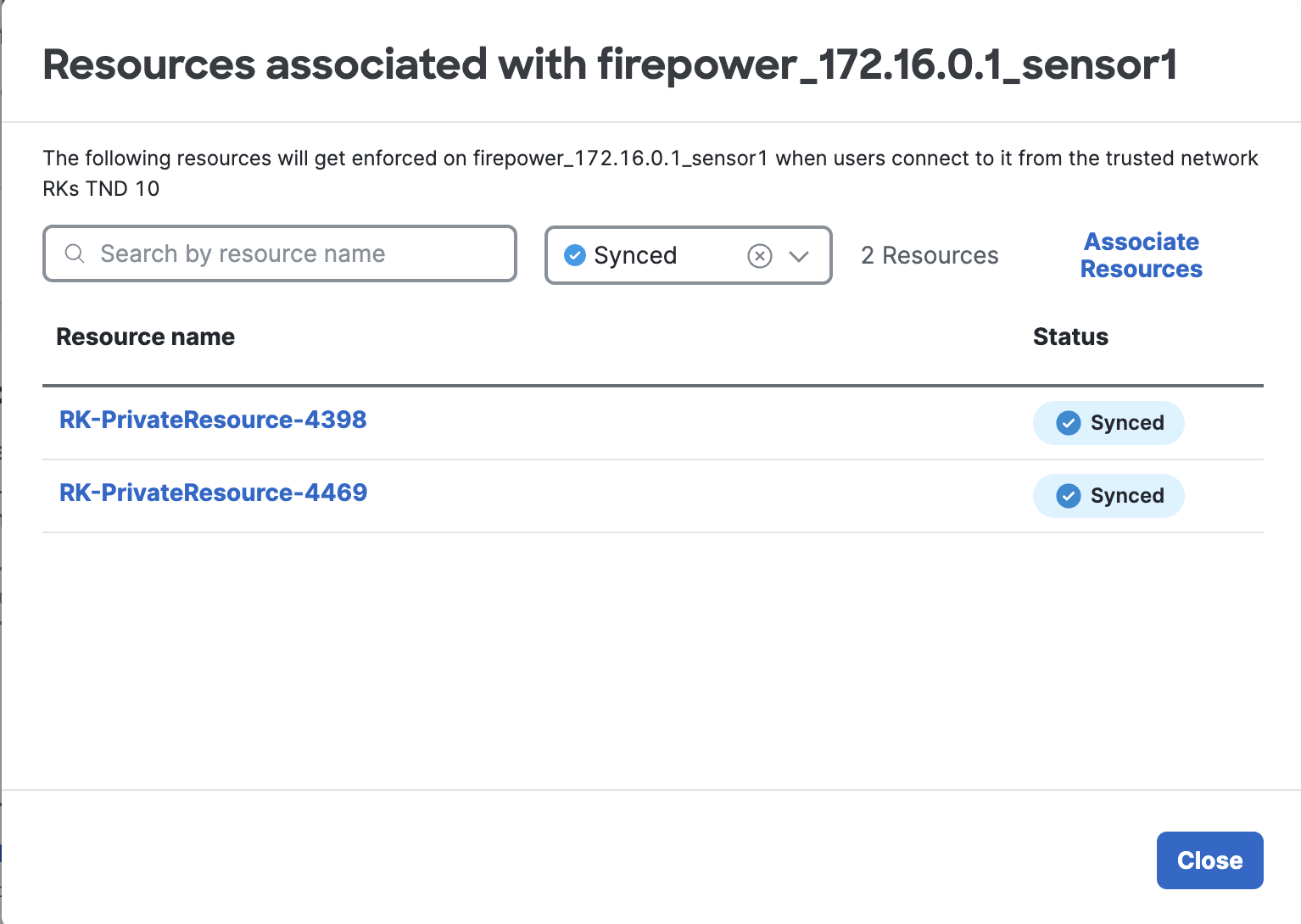
    The configuration status of each resource is displayed.

    The image illustrates the configuration status of resources and rules associated with a Threat Defense device, highlighting the actions needed to view detailed information in the slide-in pane.
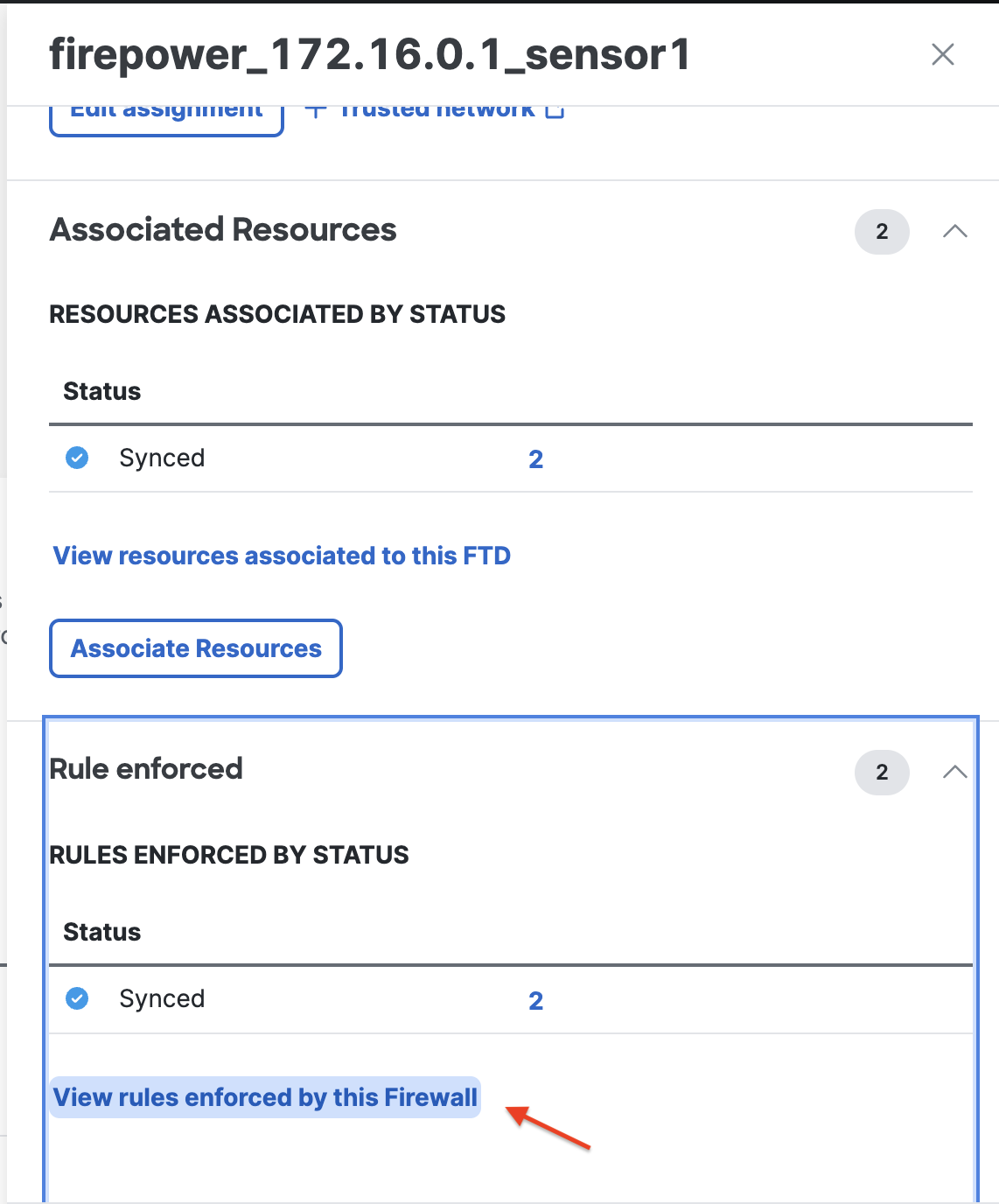
  2. To check the configuration status of each rule enforced by the Threat Defense device, click the numeral in the Rules Enforced column.

    In the slide-in pane, under the Rules Enforced section, click View rules enforced by this Firewall.

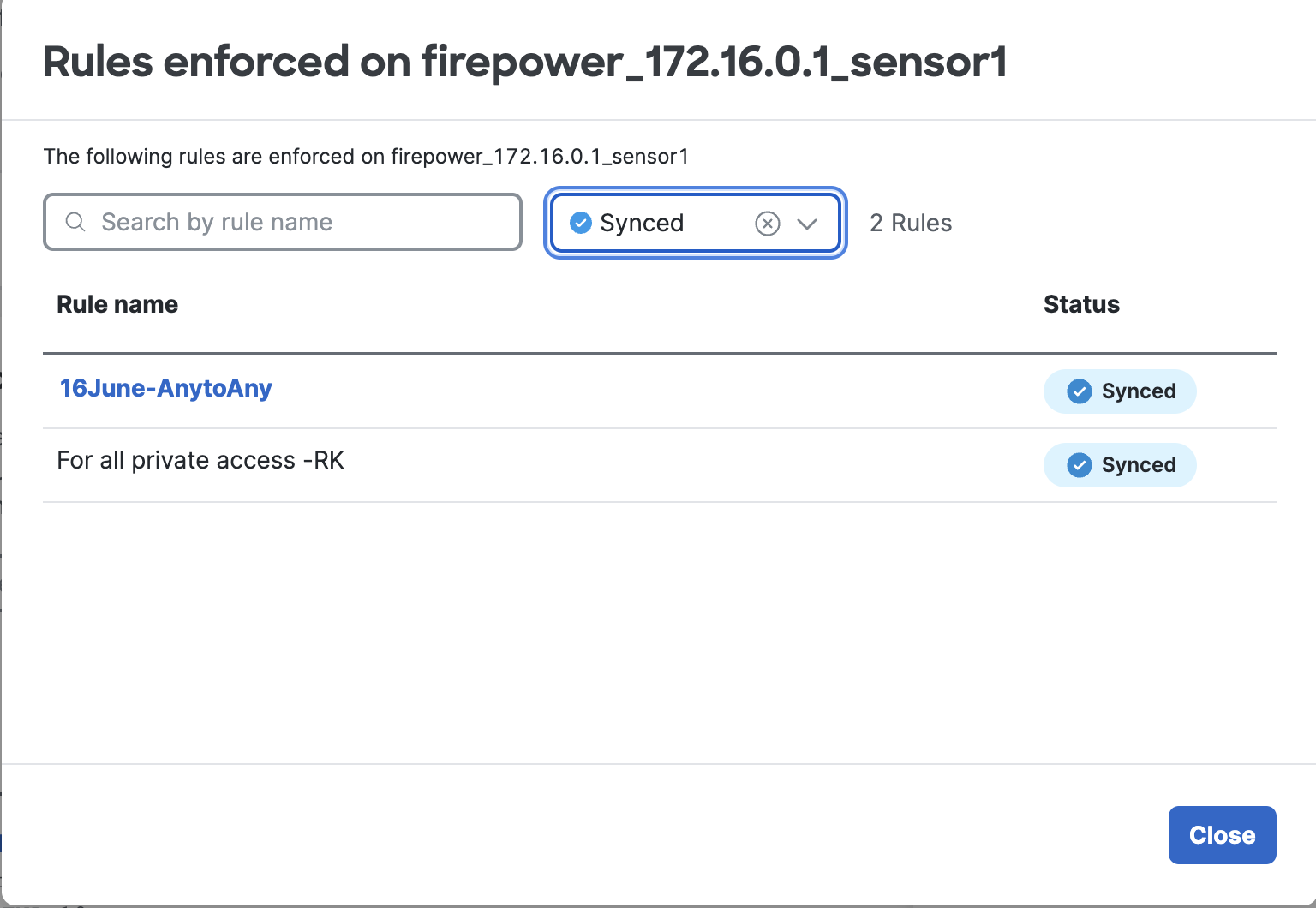
    The configuration status of network resources is shown, highlighting the rules enforced by the Firewall for secure client access to private resources.

    The configuration status of each rule that is enforced is displayed.

    The configuration status of firewall rules is displayed in the slide-in pane, showing which rules are enforced for secure network access.

Universal ZTNA is now set up, allowing your clients to access private resources in your network securely.


Network connections are configured, and Universal ZTNA is set up to allow secure access to private resources.