Configure a remote access VPN policy
Use the Remote Access VPN Policy Wizard to quickly set up a basic remote access VPN policy. Enhance the configuration by adding optional attributes, then deploy the policy to your Firewall Threat Defense devices.
The wizard consists of five stages:
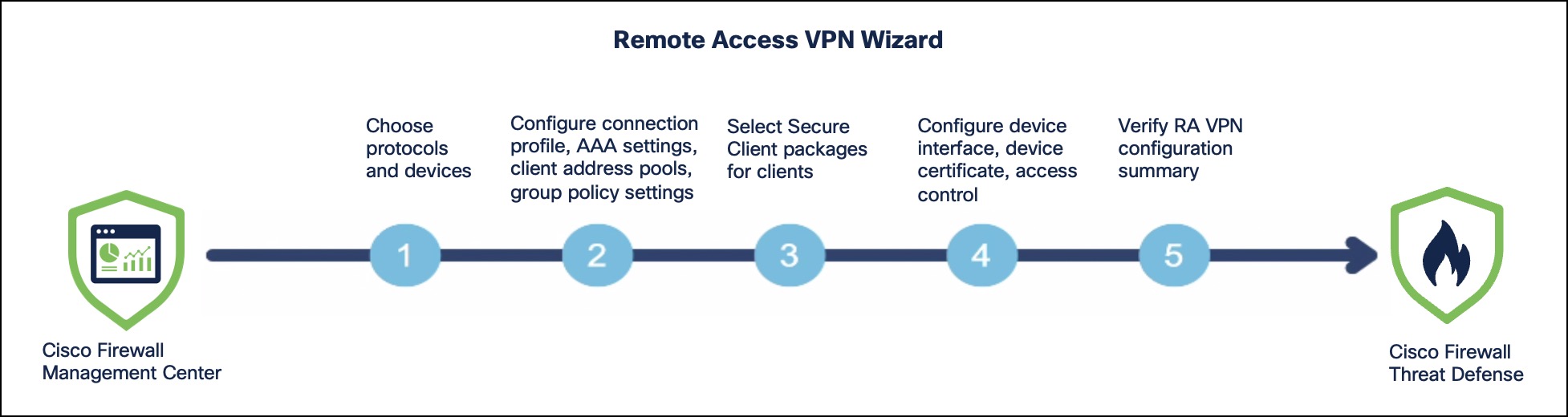
Before you begin
Ensure that you review Licenses for remote access VPN, Prerequisites for remote access VPN, and Guidelines for remote access VPNs.
Procedure
Step 1 | Choose and click Add. In the Name field, enter the name for the remote access VPN policy. |
Step 2 | Select protocols and devices.
|
Step 3 | Configure connection profile. In the Connection Profile Name field, enter the name for the VPN connection profile. A connection profile includes settings and attributes for authentication, address assignments to VPN clients, and group policies. The default connection profile, DefaultWEBVPNGroup, is available when you configure a remote access VPN policy. |
Step 4 | Configure AAA settings. For more information, see Configure AAA settings for a remote access VPN policy. |
Step 5 | Configure client address pool. You can assign client IP address pools for your remote users from a AAA server, a DHCP server, and local IP address pools. If you select multiple options, the order of the IP address assignment is AAA server, DHCP server, and local IP address pools.
|
Step 6 | Configure a group policy. A group policy contains user-oriented attributes for remote access VPN connections. You can assign attributes to users or groups without configuring each attribute individually. The connection profile applies a group policy to define user access terms after the tunnel is established. When a user logs in, a group policy identified by the AAA server is applied. If no group policy has been identified for the user, the default group policy, |
Step 7 | Select the Secure Client image that the VPN users will use to connect to the remote access VPN. When you deploy the remote access VPN policy on the Firewall Threat Defense device, and a client device initiates a VPN connection, the Secure Client package is automatically downloaded to the client device. Click Add new Secure Client Image to add a new image, and select the required images. |
Step 8 | Configure VPN interfaces for the device and the identity certificate. |
Step 9 | Configure access controls, including geolocation-based access control and access control for decrypted VPN traffic. |
What to do next
Complete these configurations to ensure the policy to work on all devices.
-
Update access control policy in Firewall Threat Defense device
-
Verify the status of the device certificate.
After you deploy the remote access policy on the devices, use the Remote Access VPN dashboard () to monitor real-time data from active remote access VPN sessions on the devices. You can quickly determine problems related to user sessions and mitigate the problems for your network and users.