Create a Decrypt - Resign Rule for Categories
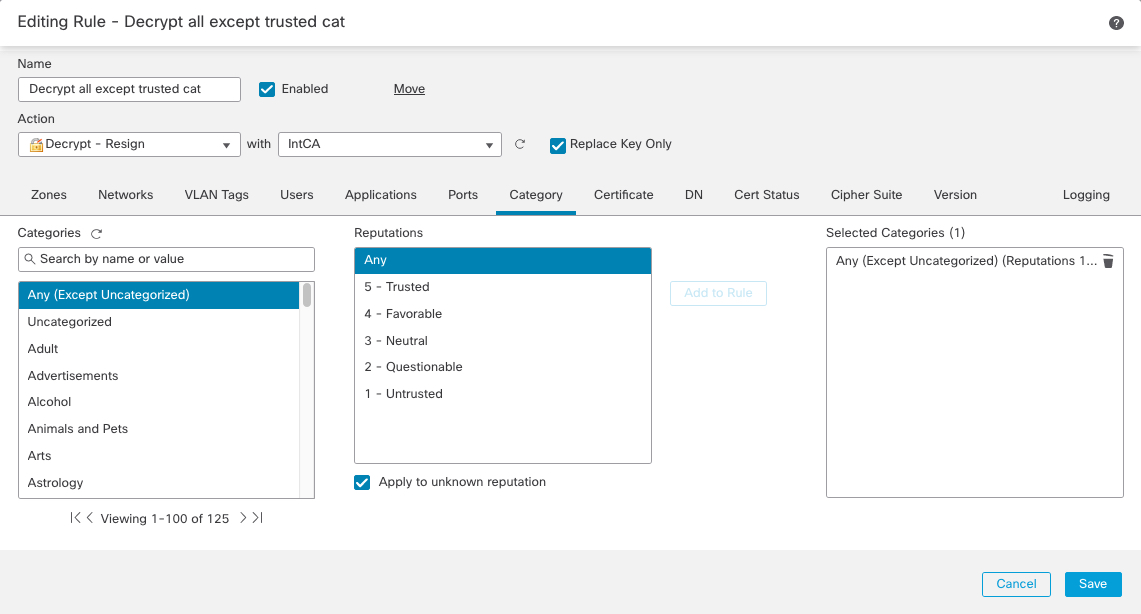
This topic shows an example of creating a decryption rule with a Decrypt - Resign action for all but uncategorized sites. The rule uses the optional Replace Key Only option, which we always recommend with a Decrypt-Resign rule action.
Replace Key Only causes the user to see a security warning in the web browser when they browse to a site that uses a self-signed certificate, making the user aware that they are communicating with an unsecure site.
By putting this rule near the bottom, you get the best of both worlds: you can decrypt and optionally inspect traffic while not affecting performance as much as if you had put the rule earlier in the policy.
Procedure
Step 1 | If you haven't already done so, upload an internal certificate authority (CA) to the Secure Firewall Management Center (, then ). |
Step 2 | Click . |
Step 3 | Click Edit ( |
Step 4 | Click Add Rule. |
Step 5 | In the Name field, enter a name to identify the rule. |
Step 6 | From the Action list, click Decrypt - Resign. |
Step 7 | From the with list, click the name of your internal CA. |
Step 8 | Check the Replace Key Only box. The following figure shows an example.
|
Step 9 | Click the Category tab page. |
Step 10 | From the top of the Categories list, click Any (Except Uncategorized). |
Step 11 | From the Reputations list, click Any. |
Step 12 | Click Add to Rule. The following figure shows an example.
|