Add a RADIUS External Authentication Object for Threat Defense
Add a RADIUS server to support external users for the threat defense.
In a multidomain deployment, external authentication objects are only available in the domain in which they are created.
Sharing External Authentication Objects
You can share the same object between the management center and devices or create separate objects. Note that the threat defense supports defining users on the RADIUS server, while the management center requires you to predefine the user list in the external authentication object. You can choose to use the predefined list method for the threat defense, but if you want to define users on the RADIUS server, you must create separate objects for the threat defense and the management center.
threat defense Supported Fields
Only a subset of fields in the RADIUS object are used for threat defense SSH access. If you fill in additional fields, they are ignored. If you also use this object for the management center, those fields will be used. This procedure only covers the supported fields for the threat defense. For other fields, see Add a RADIUS External Authentication Object for CDO.
Usernames
You cannot add the admin user for external authentication. You can only add external users (as part of the External Authentication object) in the management center; you cannot add them at the CLI. Note that internal users can only be added at the CLI, not in the management center.
If you previously configured the same username for an internal user using the configure user add command, the threat defense first checks the password against the internal user, and if that fails, it checks the RADIUS server. Note that you cannot later add an internal user with the same name as an external user; only pre-existing internal users are supported. For users defined on the RADIUS server, be sure to set the privilege level to be the same as any internal users; otherwise you cannot log in using the external user password.
Procedure
Step 1 | Define users on the RADIUS server using the Service-Type attribute. The following are supported values for the Service-Type attribute:
The names must be Linux-valid usernames:
Alternatively, you can predefine users in the external authentication object (see, Step 12). To use the same RADIUS server for the threat defense and management center while using the Service-Type attribute method for the threat defense, create two external authentication objects that identify the same RADIUS server: one object includes the predefined CLI Access Filter users (for use with the management center), and the other object leaves the CLI Access Filter empty (for use with threat defenses). | ||||||
Step 2 | In the management center, choose System ( | ||||||
Step 3 | Click External Authentication. | ||||||
Step 4 | Click ( | ||||||
Step 5 | Set the Authentication Method to RADIUS. | ||||||
Step 6 | Enter a Name and optional Description. | ||||||
Step 7 | For the Primary Server, enter a Host Name/IP Address. Only IPv4 is supported.
| ||||||
Step 8 | (Optional) Change the Port from the default. | ||||||
Step 9 | Enter the RADIUS Secret Key. | ||||||
Step 10 | (Optional) Enter the Backup Server parameters. | ||||||
Step 11 | (Optional) Enter RADIUS-Specific Parameters. | ||||||
Step 12 | (Optional) Instead of using RADIUS-defined users (see, Step 1), in the CLI Access Filter area Administrator CLI Access User List field, enter the user names that should have CLI access, separated by commas. For example, enter jchrichton, aerynsun, rygel. You may want to use the CLI Access Filter method for threat defense so you can use the same external authentication object with threat defense and other platform types.
Make sure that these usernames match usernames on the RADIUS server. The names must be Linux-valid usernames:
| ||||||
Step 13 | (Optional) Click Test to test management center connectivity to the RADIUS server. This function can only test management center connectivity to the RADIUS server; there is no test function for managed device connectivity to the RADIUS server. | ||||||
Step 14 | (Optional) You can also enter Additional Test Parameters to test user credentials for a user who should be able to authenticate: enter a User Name and Password, and then click Test.
Example:To test if you can retrieve the | ||||||
Step 15 | Click Save. | ||||||
Step 16 | Enable use of this server. See External Authentication |
 )
) )
)Examples
Simple User Role Assignments
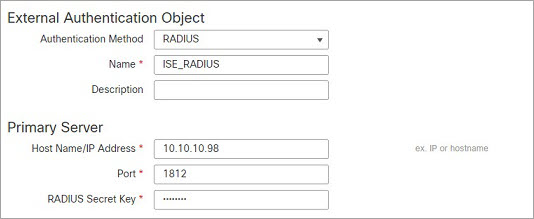
The following figure illustrates a sample RADIUS login authentication object for a server running Cisco Identity Services Engine (ISE) with an IP address of 10.10.10.98 on port 1812. No backup server is defined.
The following example shows RADIUS-specific parameters, including the timeout (30 seconds) and number of failed retries before the system attempts to contact the backup server, if any.
This example illustrates important aspects of RADIUS user role configuration:
Users ewharton and
gsand are granted web interface
Administrative access.
The user cbronte is
granted web interface Maintenance User access.
The user jausten is
granted web interface Security Analyst access.
The user ewharton can
log into the device using a CLI account.
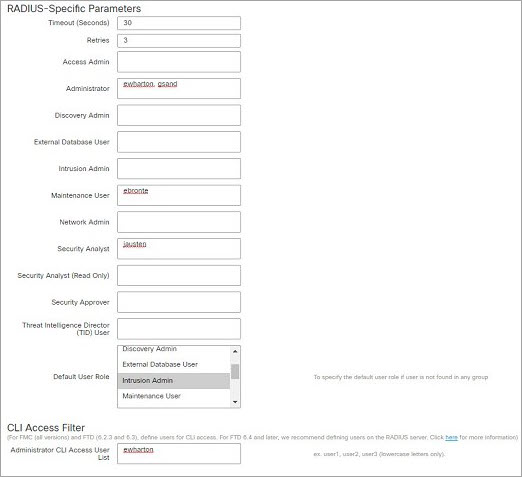
The following graphic depicts the role configuration for the example:
Roles for Users Matching an Attribute-Value Pair
You can use an attribute-value pair to identify users who should receive a particular user role. If the attribute you use is a custom attribute, you must define the custom attribute.
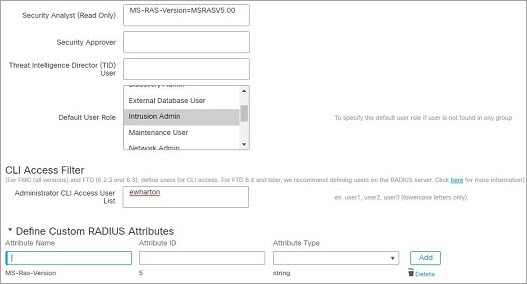
The following figure illustrates the role configuration and custom attribute definition in a sample RADIUS login authentication object for the same ISE server as in the previous example.
In this example, however, the MS-RAS-Version custom attribute is returned for one or more of the
users because a Microsoft remote access server is in use. Note the MS-RAS-Version custom attribute is a string. In
this example, all users logging in to RADIUS through a Microsoft v. 5.00 remote
access server should receive the Security Analyst (Read Only) role, so you enter the
attribute-value pair of MS-RAS-Version=MSRASV5.00 in the Security Analyst (Read Only) field.