Add an LDAP External Authentication Object for Threat Defense
Add an LDAP server to support external users for threat defense management.
Sharing External Authentication Objects
External LDAP objects can be used by the management center and threat defense devices. You can share the same object between the management center and devices or create separate objects.
Threat Defense Supported Fields
Only a subset of fields in the LDAP object are used for threat defense SSH access. If you fill in additional fields, they are ignored. If you also use this object for the management center, those fields will be used. This procedure only covers the supported fields for the threat defense. For other fields, see Add an LDAP External Authentication Object for the CDO.
Usernames
Usernames must be Linux-valid usernames and be lower-case only, using alphanumeric characters plus period (.) or hyphen (-). Other special characters such as at sign (@) and slash (/) are not supported. You cannot add the admin user for external authentication. You can only add external users (as part of the External Authentication object) in the management center; you cannot add them at the CLI. Note that internal users can only be added at the CLI, not in the management center.
If you previously configured the same username for an internal user using the configure user add command, the threat defense first checks the password against the internal user, and if that fails, it checks the LDAP server. Note that you cannot later add an internal user with the same name as an external user; only pre-existing internal users are supported.
Privilege Level
LDAP users always have Config privileges.
Before you begin
You must specify DNS server(s) for domain name lookup on your device. Even if you specify an IP address and not a hostname for the LDAP server on this procedure, the LDAP server may return a URI for authentication that can include a hostname. A DNS lookup is required to resolve the hostname. See Modify Threat Defense Management Interfaces at the CLI to add DNS servers.
Procedure
Step 1 | Choose System ( | ||||
Step 2 | Click the External Authentication tab. | ||||
Step 3 | Click ( | ||||
Step 4 | Set the Authentication Method to LDAP. | ||||
Step 5 | Enter a Name and optional Description. | ||||
Step 6 | Choose a Server Type from the drop-down list. | ||||
Step 7 | For the Primary Server, enter a Host Name/IP Address. If you are using a certificate to connect via TLS or SSL, the host name in the certificate must match the host name used in this field. In addition, IPv6 addresses are not supported for encrypted connections. | ||||
Step 8 | (Optional) Change the Port from the default. | ||||
Step 9 | (Optional) Enter the Backup Server parameters. | ||||
Step 10 | Enter LDAP-Specific Parameters. | ||||
Step 11 | Configure Attribute Mapping to retrieve users based on an attribute.
| ||||
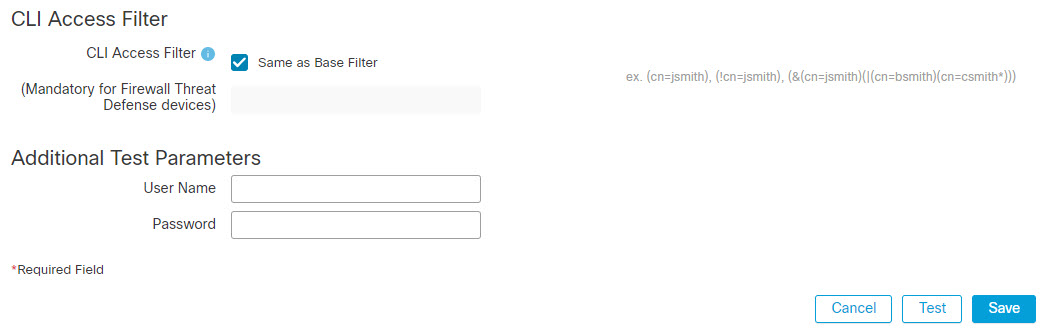
Step 12 | Set the CLI Access Filter. Choose one of the following methods:
The usernames must be Linux-valid:
| ||||
Step 13 | Click Save. | ||||
Step 14 | Enable use of this server. See External Authentication. | ||||
Step 15 | If you later add or delete users on the LDAP server, you must refresh the user list and redeploy the Platform Settings on managed devices.
|
 )
) )
) )
)Examples
Basic Example
The following figures illustrate a basic configuration of an LDAP login authentication object for a Microsoft Active Directory Server. The LDAP server in this example has an IP address of 10.11.3.4. The connection uses port 389 for access.
This example shows a
connection using a base distinguished name of OU=security,DC=it,DC=example,DC=com for the security organization in
the information technology domain of the Example company.
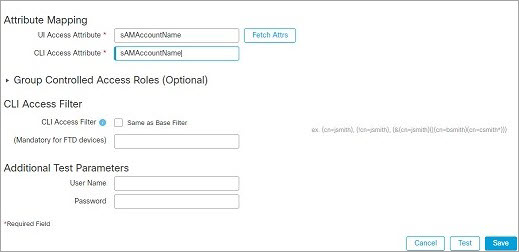
A CLI Access Attribute of
sAMAccountName causes each sAMAccountName attribute to be checked for all
objects in the directory for matches when a user logs into the threat
defense.
Note that because no base filter is applied to this server, the threat defense checks attributes for all objects in the directory indicated by the base distinguished name. Connections to the server time out after the default time period (or the timeout period set on the LDAP server).
Advanced Example
This example illustrates an advanced configuration of an LDAP login authentication object for a Microsoft Active Directory Server. The LDAP server in this example has an IP address of 10.11.3.4. The connection uses port 636 for access.
This example shows a
connection using a base distinguished name of OU=security,DC=it,DC=example,DC=com for the security organization in
the information technology domain of the Example company. However, note that this
server has a base filter of (cn=*smith). The
filter restricts the users retrieved from the server to those with a common name
ending in smith.
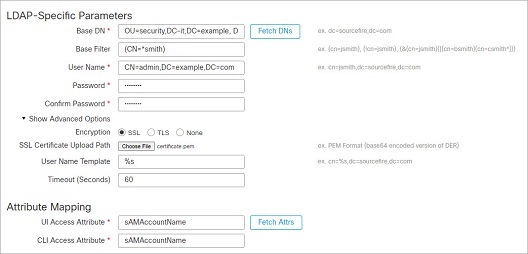
The connection to the server is
encrypted using SSL and a certificate named certificate.pem is used for the connection. In addition, connections
to the server time out after 60 seconds because of the Timeout (Seconds) setting.
Because this server is a Microsoft Active Directory server, it
uses the sAMAccountName attribute to store
user names rather than the uid
attribute.
The CLI Access
Attribute of sAMAccountName
causes each sAMAccountName attribute to be
checked for all objects in the directory for matches when a user logs into the threat
defense.
In the following example, the CLI access filter is set to be the same as the base filter.