Generate Snort 3 recommendations
Generate and apply Snort 3 rule recommendations to optimize your intrusion policy based on your network configuration and security requirements.
Snort 3 recommendations help you configure intrusion policies with rules that are tailored to your network environment. The system analyzes your protected networks and suggests appropriate security levels and rule configurations.
Procedure
Step 1 | Choose . |
Step 2 | Click the Snort 3 Version button of the corresponding intrusion policy. |
Step 3 | Click the Recommendations (Not in Use) layer to configure the rule recommendations. 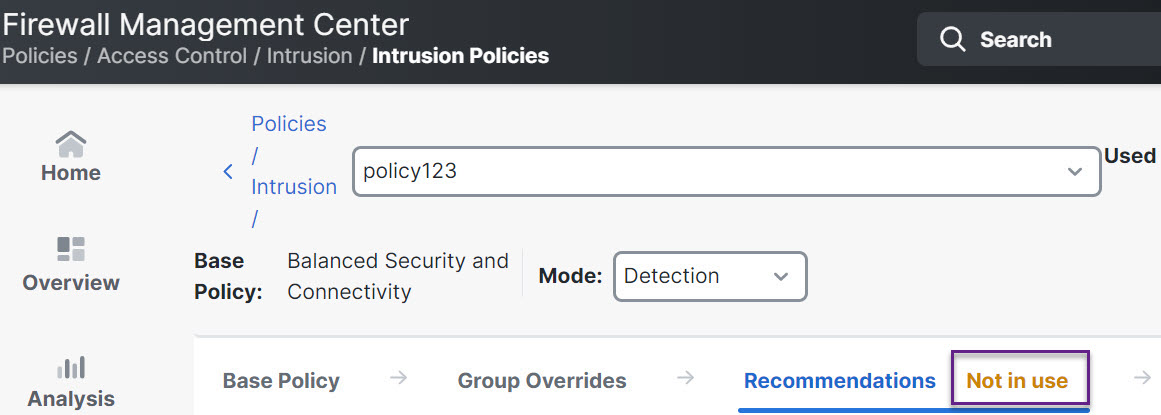
In the Cisco Recommended Rules window, you can set the security level. 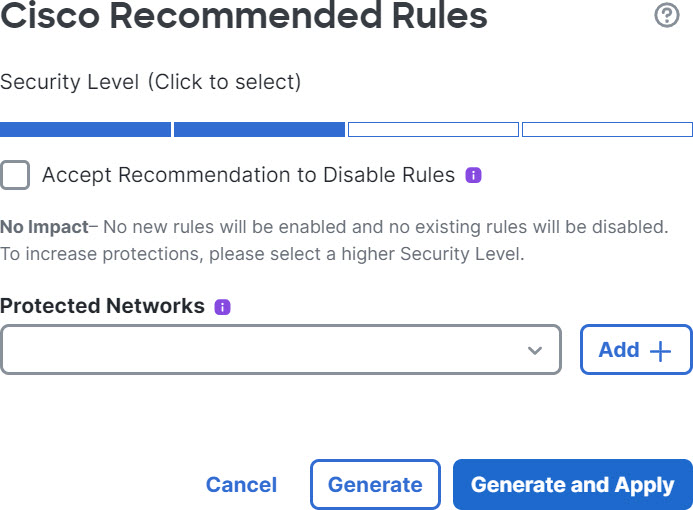
|
Step 4 | Click to select the security level. |
Step 5 | (Optional) Check the Accept Recommendation to Disable Rules check box to disable the rules written for vulnerabilities not found on the hosts in your network. Use this option, only if you have to trim your rule set because of a high number of alerts or to improve inspection performance. |
Step 6 | From the Protected Networks drop-down list, choose the network objects that must be examined by the recommendations. By default, any IPv4 or IPv6 networks are selected if you do not make a selection. Click Add + to create a new network object of type Host or Network and click Save. |
Step 7 | Generate and apply recommendations:
Recommendations are generated successfully. A new recommendation tab appears with all the recommended rules and their corresponding recommended actions. Rule action preset filters are also available for this tab, in addition to new recommendations. |
Step 8 | Verify the recommendations and then apply them accordingly:

Under All Rules, the Recommended Rules section displays the recommended rules. 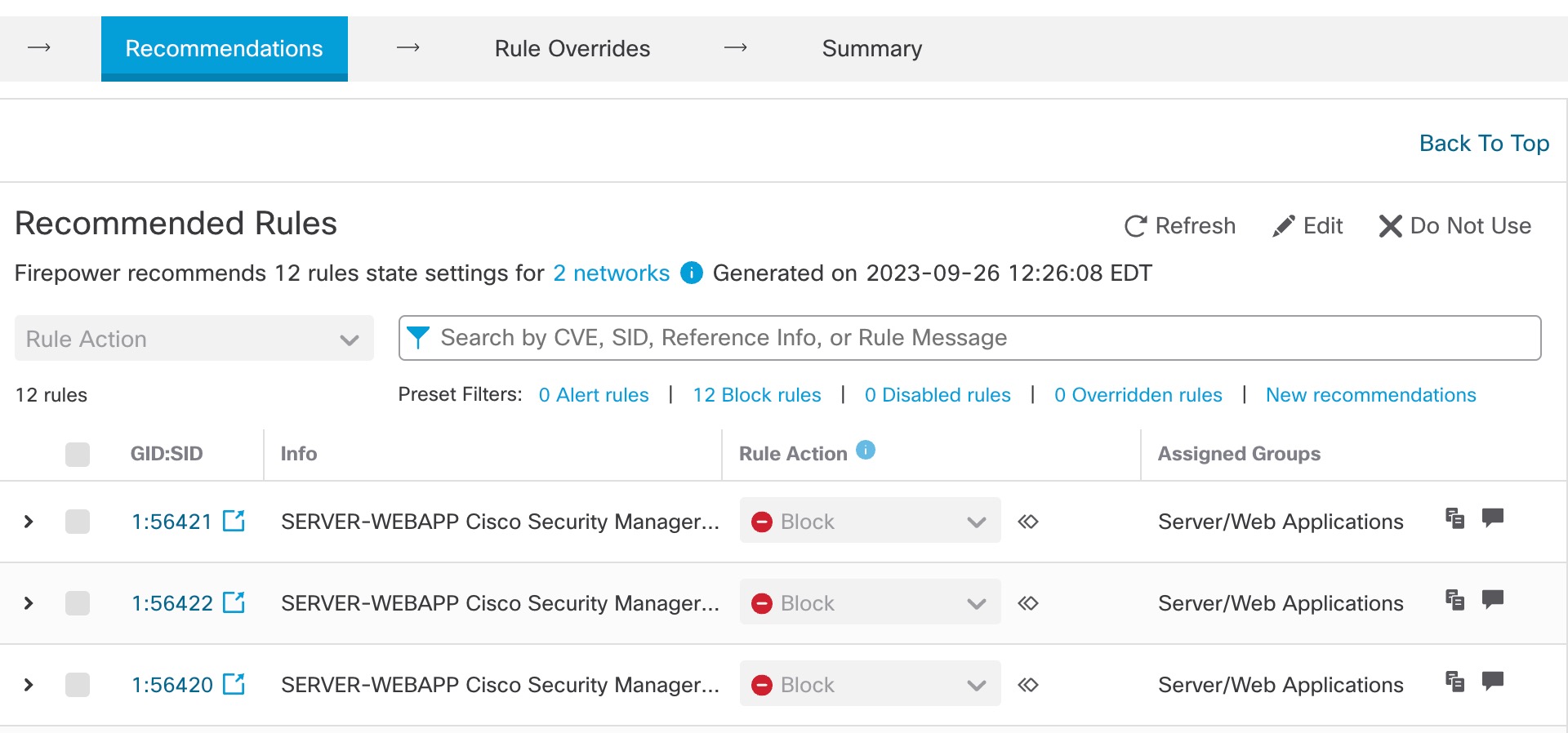
|
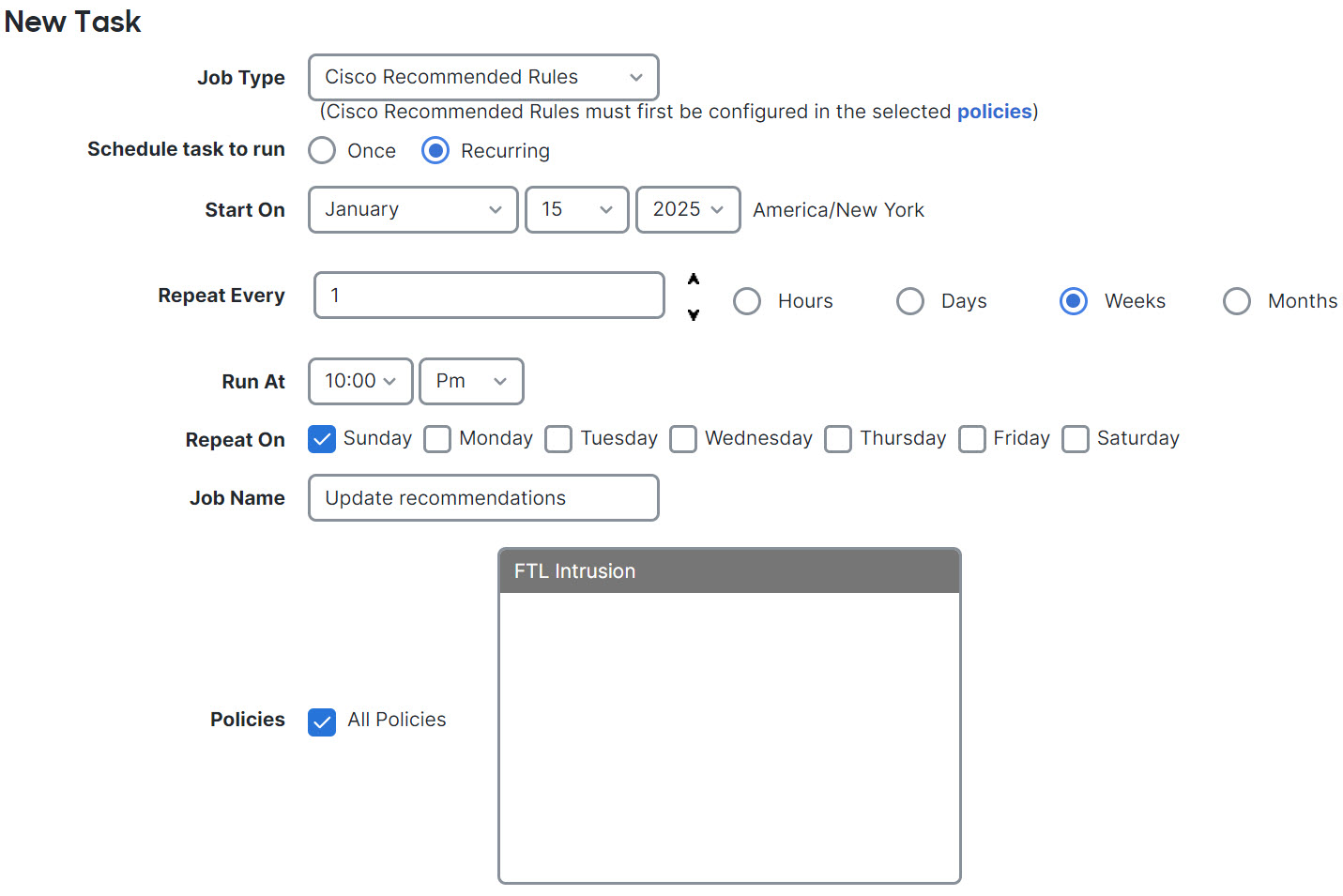
Step 9 | To effectively use recommendations, they must be updated periodically. Follow these steps:
|
What to do next
Deploy configuration changes. Refer to Deploy configuration changes.