Add internal servers

Add internal servers to specify certificates, networks, and ports for traffic decryption, which enables protection of internal servers and optimizes processing time.

This task discusses how to choose certificates to use to decrypt traffic coming to internal servers you want to protect. In addition to choosing a certificate, you can also specify the network and port on which the internal server is located, saving processing time.

Before you begin

Complete the tasks discussed in Create a standard decryption policy with inbound protection.

Follow these steps to add internal servers:

Procedure


Step 1

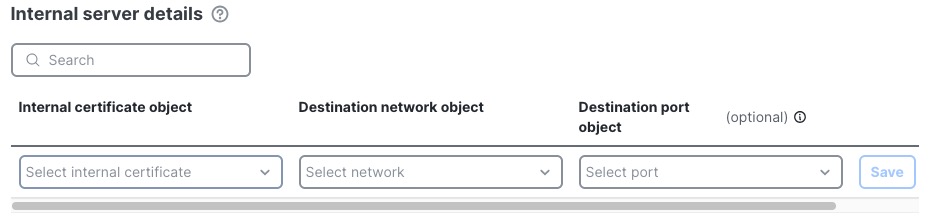
Click Add new under Internal Server Details.

Step 2

In the Internal Servers dialog box, do any of the following:

  • Search for an internal certificate by entering text in the search field and pressing Enter.

  • From the Internal certificate object list, choose an existing certificate or click Add New to create a new one.

    Note

    The Secure Firewall Threat Defense device servicing the traffic must trust the certificate you upload to the rule. If you upload a self-signed certificate or a certificate not trusted by a certificate authority, and you want to replace the certificate later, you must update the policy's advanced settings in any of these ways:

    • Add the certificate to the Trusted CA certificates list.

    • Select the Require exact certificate match for inbound decryption check box.

    For more information about advanced policy options, see Standard decryption policy advanced options.

    For more information about replacing a certificate, see the discussion of Replace Cert in Incoming traffic decryption.

  • From the Destination network object list, click the network on which the internal server is located or click Add New to create a new one.

  • (Optional.) From the Destination port list, click the port on which to apply the decryption rule or click Add New to create a new one.

    For more information, see Upload an internal certificate for inbound protection.

Note

Click Help (help icon) on any dialog box for more information.

Step 3

Click Save.

This figure shows an example.

Sample internal certificate used in an inbound decryption rule.

Step 4

Save the decryption policy by clicking Save at the top of the page.

Step 5

If you're finished configuring your policy, see Decryption policy actions.