View and edit your Snort 3 intrusion policy

This task allows you to customize your Snort 3 intrusion policy by modifying rule groups, security levels, and accessing Cisco-recommended rules to enhance threat detection capabilities.

Snort 3 intrusion policies use a hierarchical rule group structure organized by the MITRE framework. You can drill down to specific rule categories and modify security levels for bulk changes or individual rule actions. The policy editor provides multiple layers, including Group Overrides, Rule Overrides, Recommendations, and Summary views.

Procedure


Step 1

Choose Policies > Security policies > Intrusion.

Step 2

Ensure that the Intrusion Policies tab is chosen.

  1. Click Snort 3 Version next to the intrusion policy that you want to view or edit.

  2. Close the Snort helper guide that is displayed.

Step 3

Click the Group Overrides layer.

This layer lists all the categories of rule groups, in a hierarchical structure. You can drill down to the final leaf rule group under each rule group.
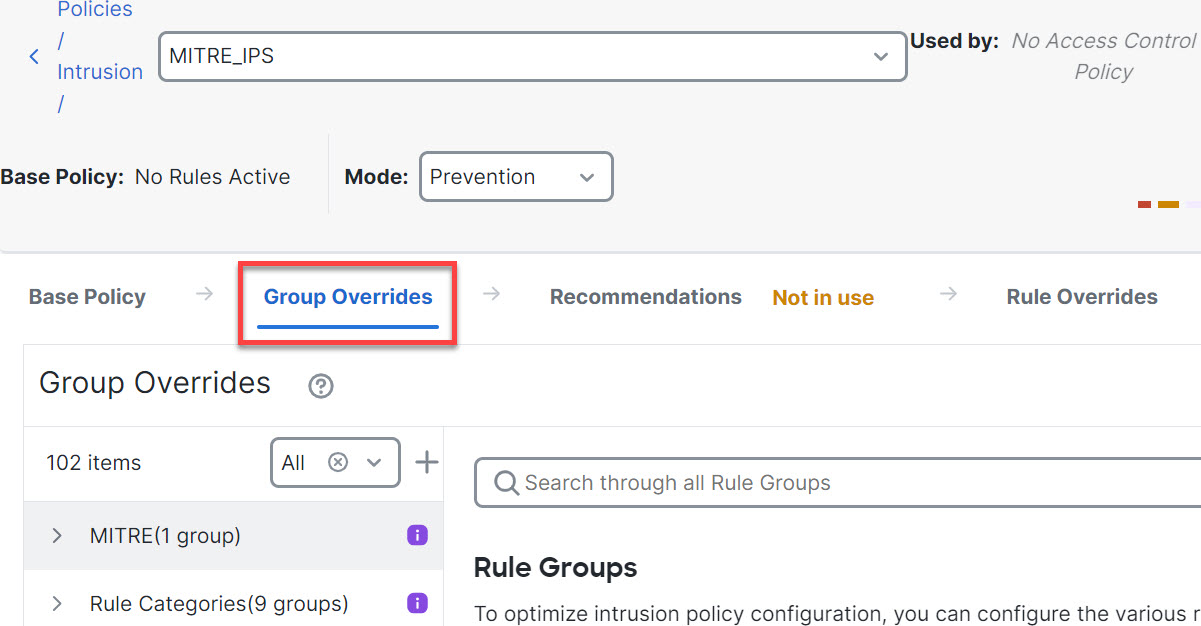
The layer displays a hierarchical structure of rule groups for the Snort 3 intrusion policy, allowing users to drill down to the specific leaf rule group within each category.
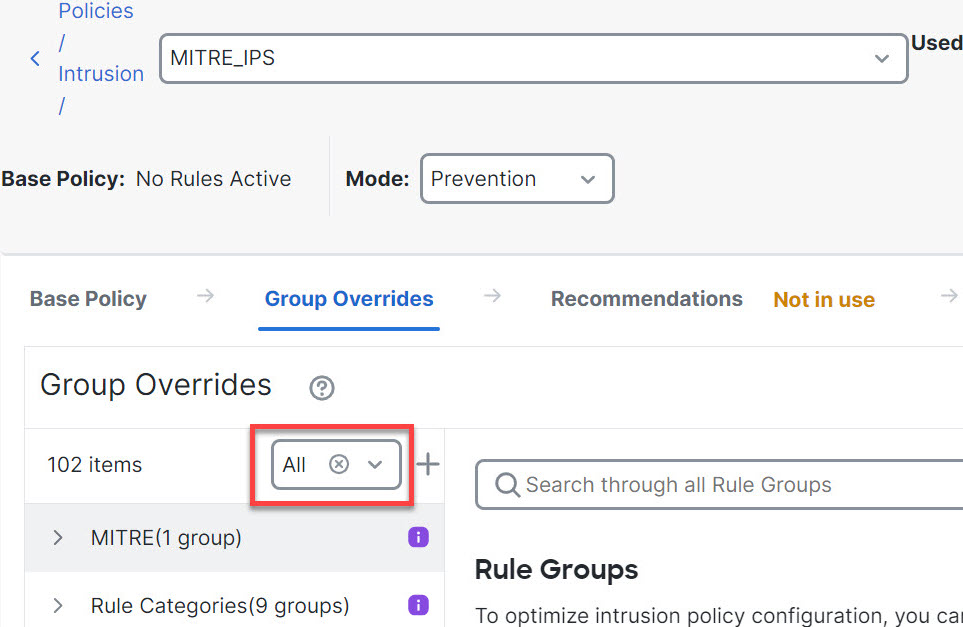
  1. Under Group Overrides, ensure that All is chosen in the drop-down list, so that all the rule groups for the corresponding intrusion policy are visible in the left pane.

    The image illustrates the Snort 3 intrusion policy interface, highlighting the selection of Rule Categories and subrule groups within the MITRE framework.

Step 4

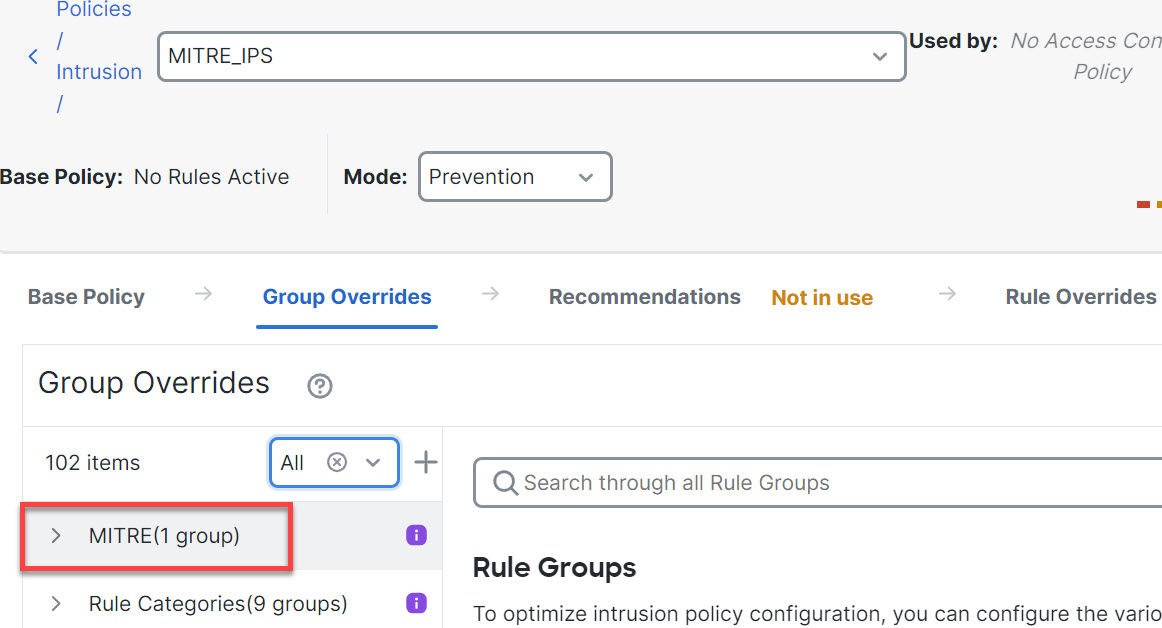
Click MITRE in the left pane.

Note

Depending on your specific requirements, you can choose the Rule Categories rule group or any other rule group and subrule groups under it. All the rule groups use the MITRE framework.

The image illustrates the Snort 3 intrusion policy interface, highlighting the available rule categories and their organization within the MITRE framework.
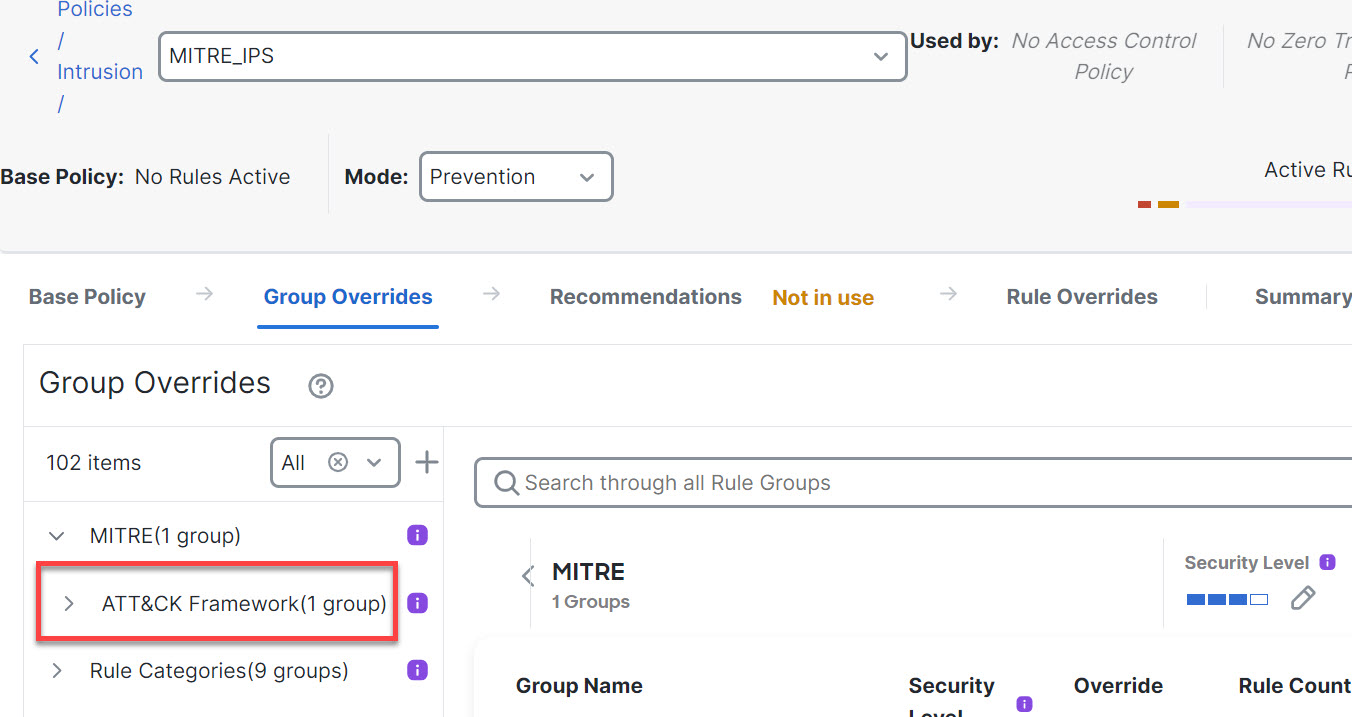
  1. Under MITRE, click ATT&CK Framework to drill down.

    The image illustrates the process of selecting and editing rule groups within the Snort 3 intrusion policy, highlighting the available Rule Categories and their relationship to the MITRE framework.
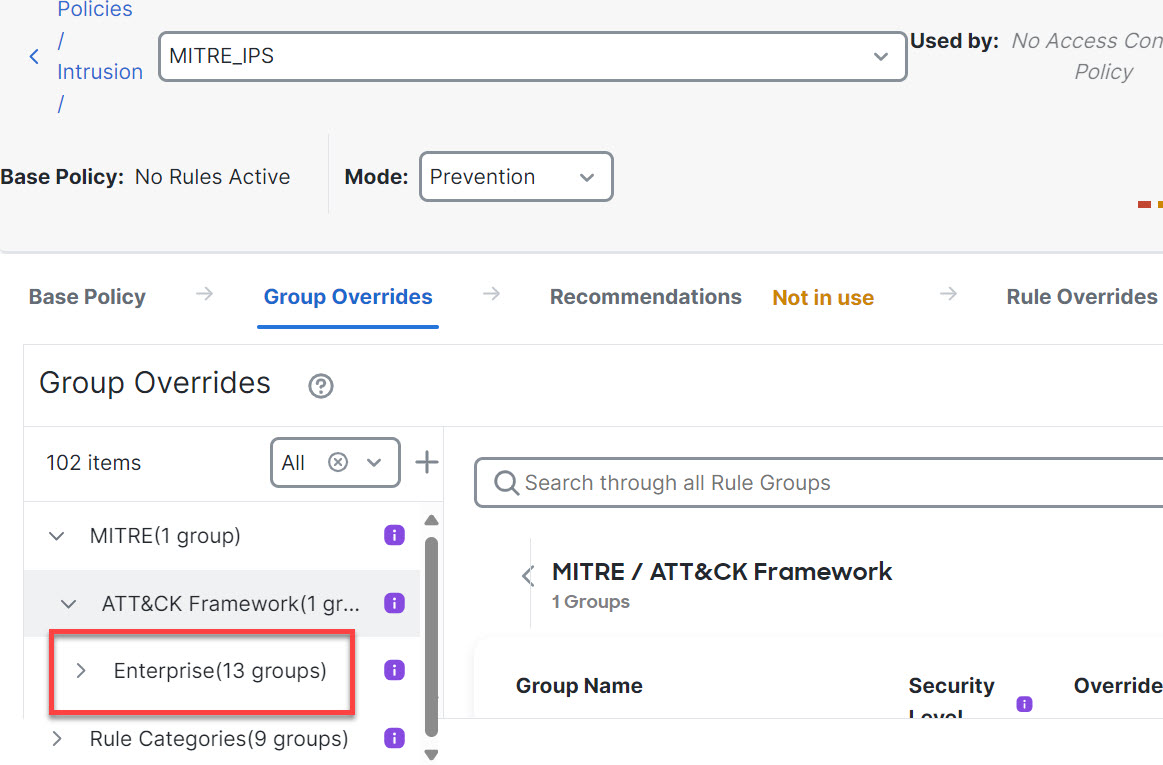
  2. Under ATT&CK Framework, click Enterprise to expand it.

    The Snort 3 intrusion policy interface displays options for viewing and editing various policy settings, including rules and thresholds for intrusion detection.
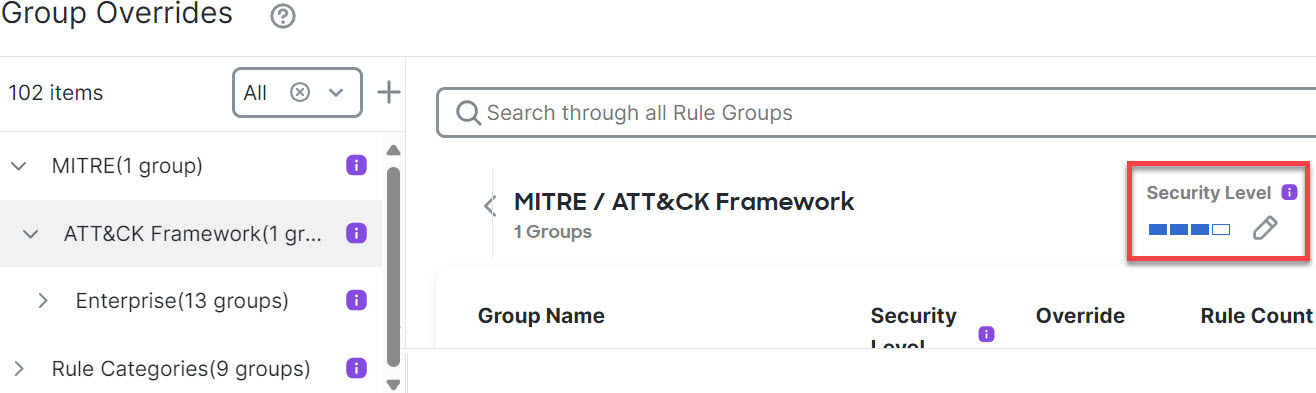
  3. Click the Edit (edit icon) icon next to the Security Level of the rule group to make bulk changes to all associated rule group security levels under the Enterprise rule group category.

    The Snort 3 intrusion policy interface displays options for viewing and editing various security rules and configurations. Users can modify settings to enhance network protection.
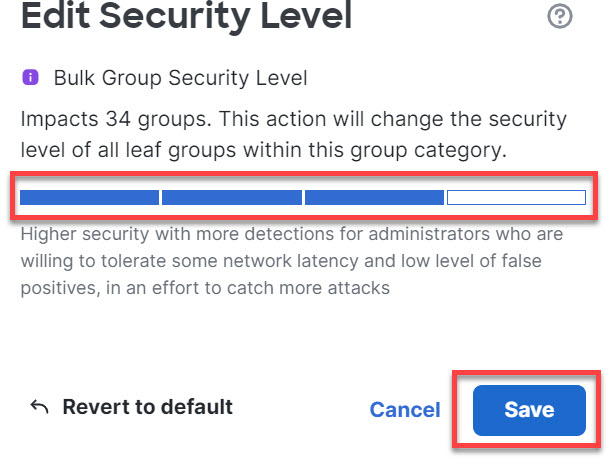
  4. In the Edit Security Level window, choose a Security Level (in this example, 3), and click Save.

    The Snort 3 intrusion policy interface displays various configuration options, including rules and settings for managing network security. Users can view and edit specific policies to enhance threat detection and response.

Step 5

Under Enterprise, click Initial Access to expand it.

Step 6

Under Initial Access, click Exploit Public-Facing Application, which is the last leaf group.
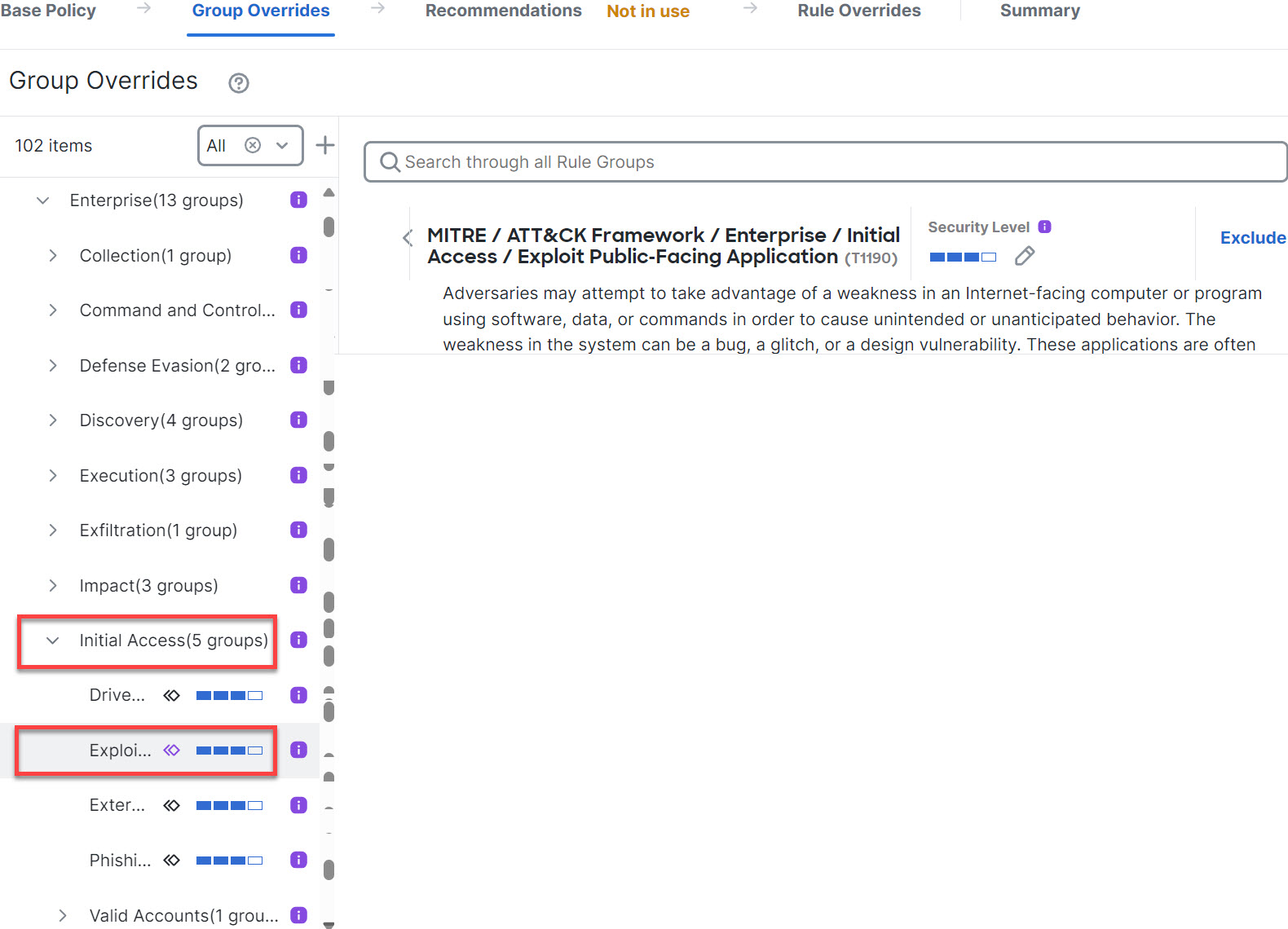
The Snort 3 intrusion policy interface displays options for viewing and editing various security rules and configurations. Users can modify settings to enhance network protection against threats.

Step 7

Click View Rules in Rule Overrides to view the available rules, their details, and actions. You can change the rule actions for one or multiple rules in the Rule Overrides layer.
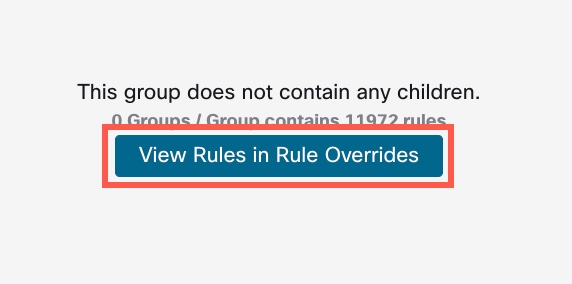
The Snort 3 intrusion policy interface displays options for viewing and editing various security rules and configurations. Users can modify settings to enhance network protection.

Step 8

Click the Recommendations layer and then click Start to start using Cisco-recommended rules. You can use the intrusion rule recommendations to target the vulnerabilities that are associated with the host assets detected in the network. For more information, see Generate new Secure Firewall recommendations in Snort 3.
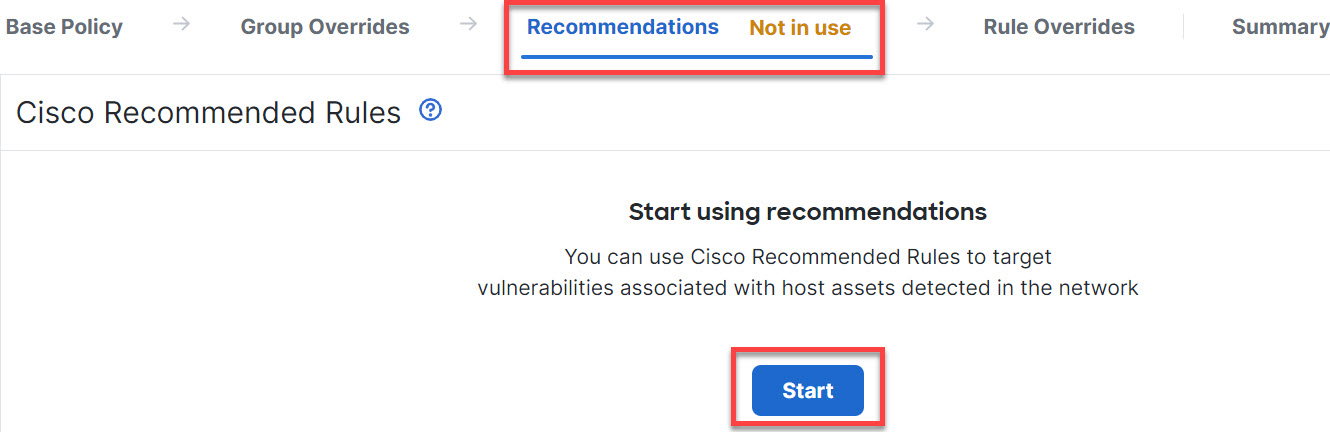
The Snort 3 intrusion policy interface displays options for viewing and editing various security rules and configurations. Users can modify settings to enhance network protection against threats.

Step 9

Click the Summary layer for a holistic view of the current changes to the policy. Based on the rule overrides, security-level changes, and generation of Cisco-recommended rules, you can view the rule distribution of the policy, group overrides, rule overrides, rule recommendations, and additional details to verify your changes.
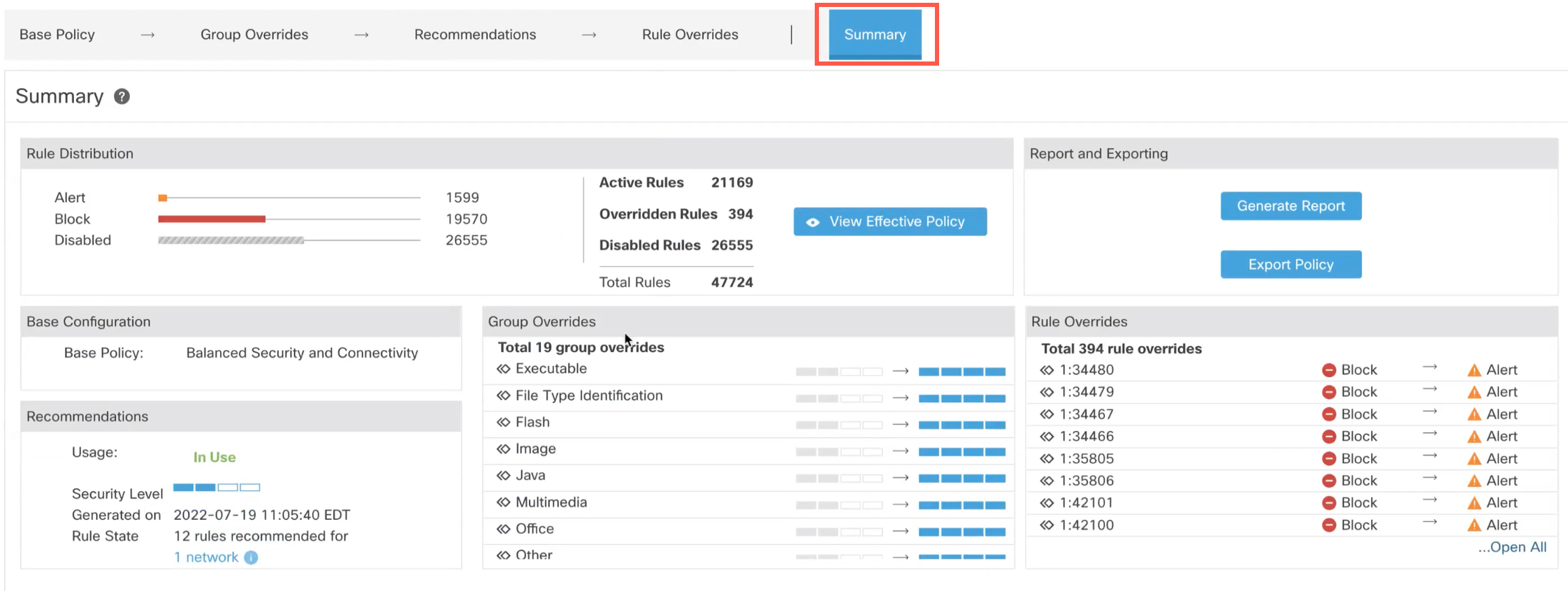
The Snort 3 intrusion policy interface displays the customized rule groups, security levels, and recommendations, along with a summary layer for verification of modifications.

What to do next

Deploy your intrusion policy to detect and log events that are triggered by the Snort rules. See Deploy configuration changes.