Register the pxGrid Cloud connection with Cisco ISE
This task registers the pxGrid Cloud connection with Cisco ISE to enable pxGrid Cloud to send user data to the pxGrid Cloud identity source in Security Cloud Control.
Registering this connection enables communication between your identity services and cloud security services, facilitating the exchange of user authentication and authorization data.
Before you begin
Complete the tasks discussed in Register Cisco ISE with the Catalyst Cloud Portal.
Follow these steps to register the pxGrid Cloud connection with Cisco ISE:
Procedure
Step 1 | Log in to Cisco ISE as an administrator. |
Step 2 | Click |
Step 3 | Make sure all services are enabled with read/write privileges. |
Step 4 | In the left navigation bar, click pxGrid Cloud Connection. |
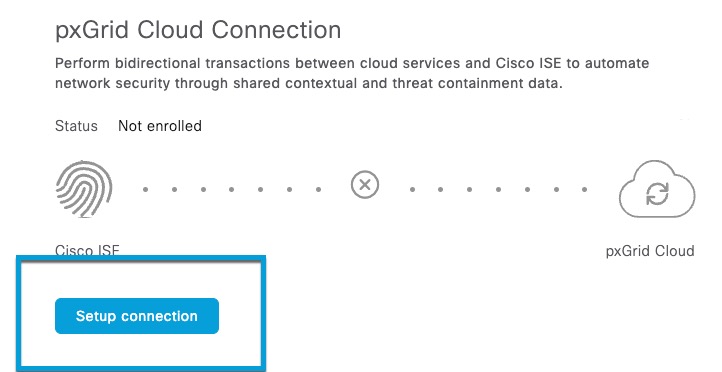
Step 5 | Click Setup Connection.
|
Step 6 | Paste the OTP value in the provided field. |
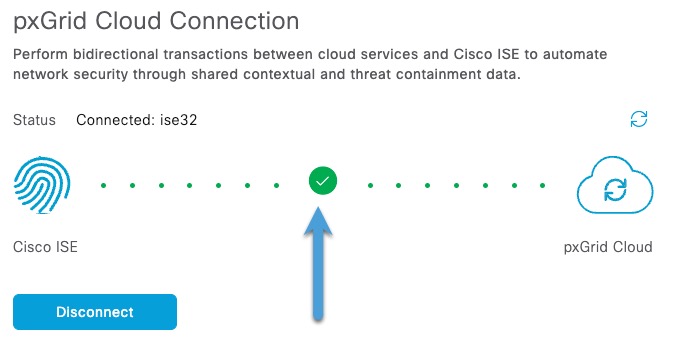
Step 7 | Click Connect. A green check mark confirms that connection was successful.
|
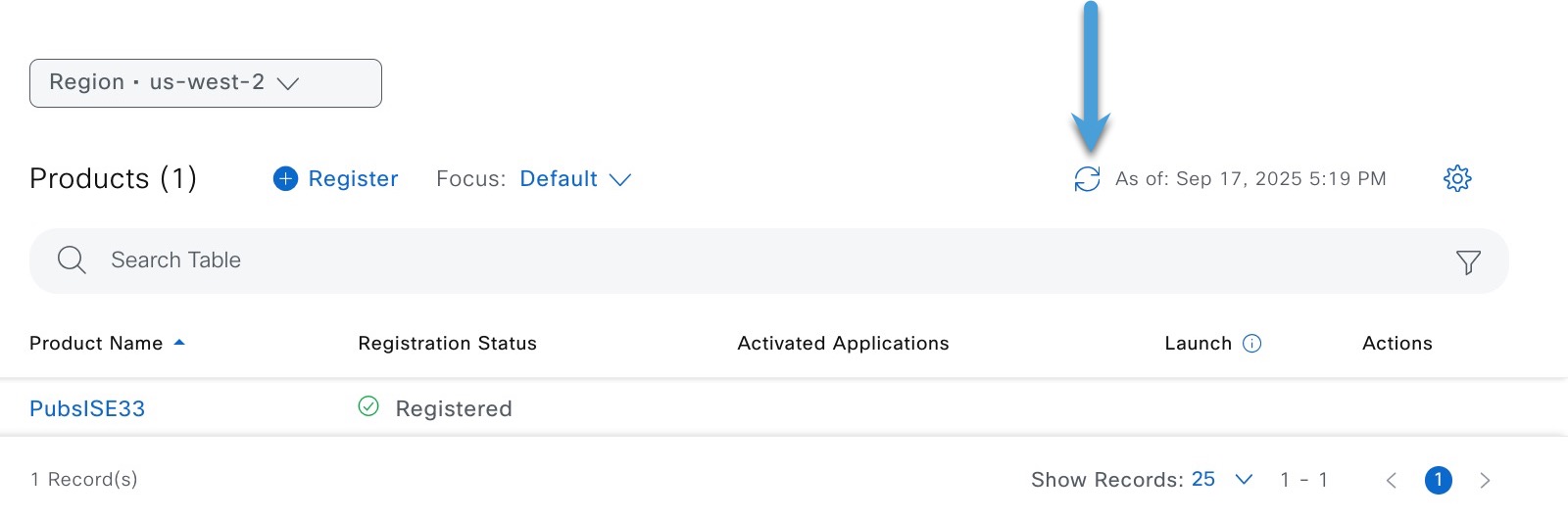
Step 8 | Confirm the setup has been successful:
|

What to do next
Continue with Create the identity source.