Perform a rollback
Use rollback to revert a device to a previously deployed configuration when the traffic through the device is affected in an unintended way after a policy deployment.
You can roll back a device to a previously deployed configuration. After a policy deployment, if the traffic through the device is affected in an unintended way, rollback provides an option to revert the device to the earlier state, which existed before the faulty deployment.
Rollback reverts the configuration only on the selected devices.
Procedure
Step 1 | Choose Deploy >Deployment History ( A list of all the previous deployment jobs is displayed in reverse chronological order. |
Step 2 | Click Rollback. |
Step 3 | Filter the list of devices displayed by either clicking Job and choosing a job from the Selected Job drop-down list, or by clicking Device List. |
Step 4 | (Optional) Enter the device name in the Search Device search box to filter the device list. |
Step 5 | Check the box next to the devices you want to roll back and choose the version for each device from the Rollback Version drop-down list. 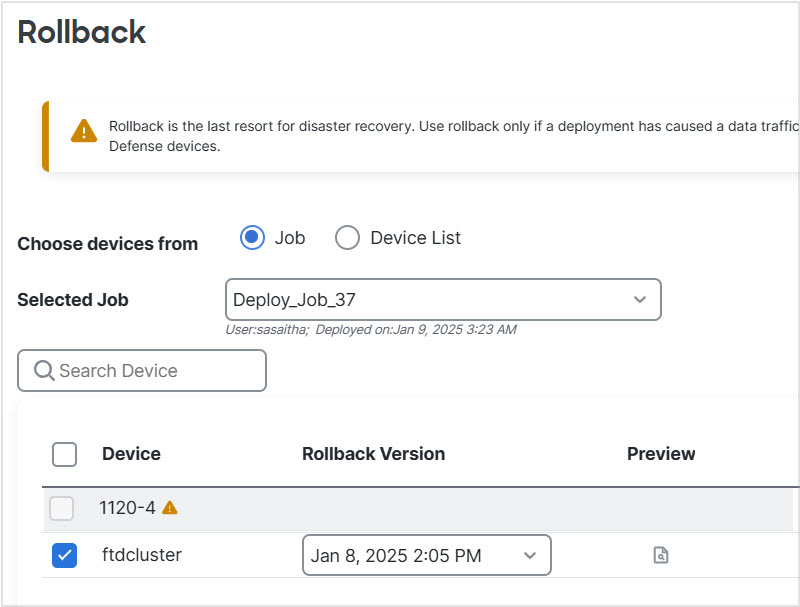
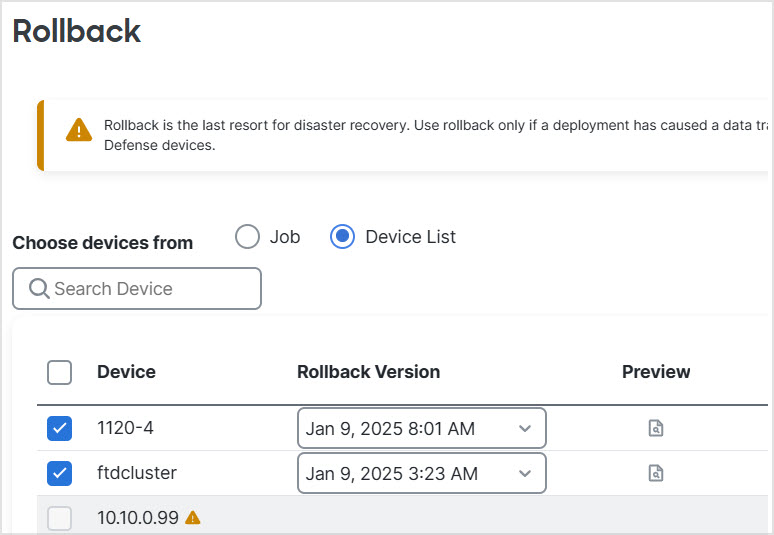
The job names and associated deployment notes are also listed for a particular rollback version. |
Step 6 | (Optional) Click the Preview ( |
Step 7 | Click Rollback to restore the selected devices to the chosen configuration version. |


What to do next
To verify rollback status, go to and check the rollback status next to the device name.