View and edit the system-created access control policy
Customize the system-created access control policy by adding devices, changing rules, reordering rules, or deleting rules to meet your specific network security requirements.
This topic discusses how you can edit the system-created access control rules and policy. Initially, the policy isn't associated with any devices but if you want to use it you can add devices, change rules, reorder rules, or delete rules.
Before you begin
Complete the tasks described in View system-defined access control rules.
Follow these steps to view and edit the system-created access control policy:
Procedure
Step 1 | If you haven't already done so, log in to Security Cloud Control. |
Step 2 | Click Firewall. |
Step 3 | Click . |
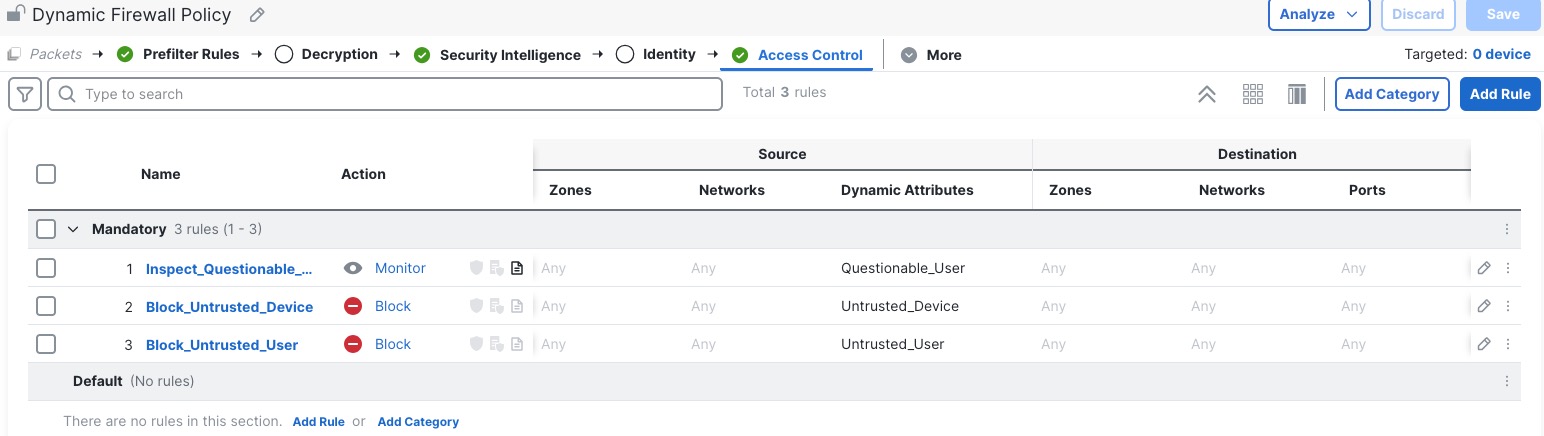
Step 4 | Click Edit ( The following figure shows a sample access control policy.
Note that in this access control policy, only the rule set to monitor questionable users logs anything. To adjust the logging settings, see Logging settings for access control policies. |
Step 5 | Do any of the following:
|