Create Catalyst SD-WAN security policies
Create Catalyst SD-WAN NGFW security policies to control and secure network traffic through defined sub-policies and rules.
Security policies provide granular control over network traffic flow and enable inspection of data packets based on source and destination zones, protocols, and applications.
Before you begin
Make sure you have deployed and managed these devices using a configuration group. For more information about creating configuration groups, see Configuration Groups and Feature Profiles.
Follow these steps to create Catalyst SD-WAN NGFW security policies in Security Cloud Control Firewall Management using the Create NGFW policy workflow:
Procedure
Step 1 | Choose . | ||||||||||||
Step 2 | Click Add NGFW Policy on the Catalyst SD-WAN NGFW Policies page. This launches the Create NGFW policy workflow. | ||||||||||||
Step 3 | On the Security Policy Name tab, enter Policy Name and Description, and under Device Solution, click the SDWAN radio button. | ||||||||||||
Step 4 | Click Next. | ||||||||||||
Step 5 | On the Select the optional Configuration Group to associate with the NGFW policy page, choose the configuration group to associate with the NGFW policy and click Next. | ||||||||||||
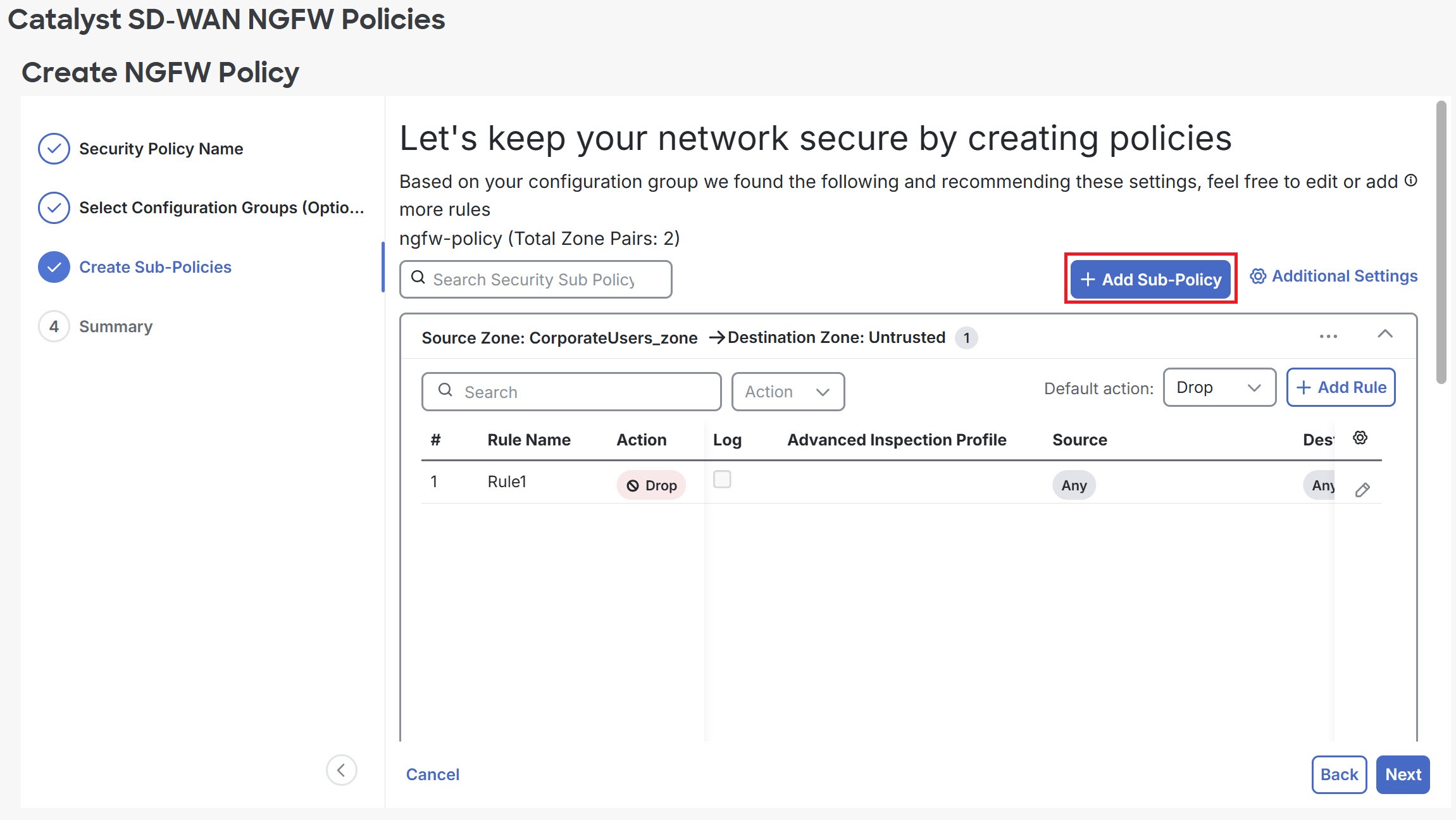
Step 6 | On the Create Sub-Policies tab, click +Add Sub-Policy to add sub-policies for a security policy.
| ||||||||||||
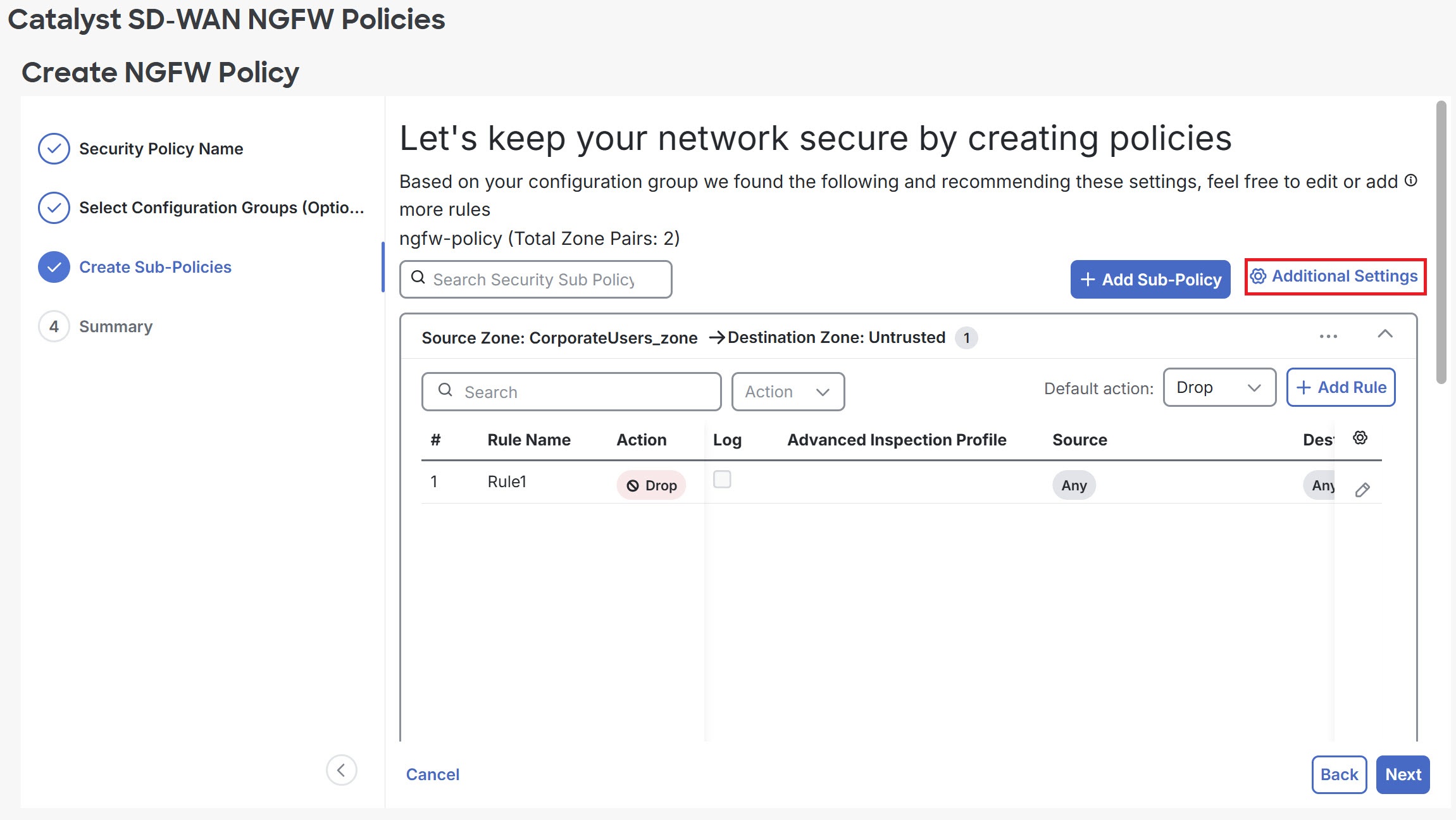
Step 7 | Click Additional Settings to configure additional settings for a security policy. For more information about the steps used in the procedure, Configure NGFW Additional Settings. | ||||||||||||
Step 8 | Click Save.
| ||||||||||||
Step 9 | Click the ellipsis (...) at the top-left corner of the existing sub-policy to Edit, Delete, or Copy it. | ||||||||||||
Step 10 | To add an NGFW policy rule to a sub-policy, navigate to the sub-policy and click + Add Rule.
| ||||||||||||
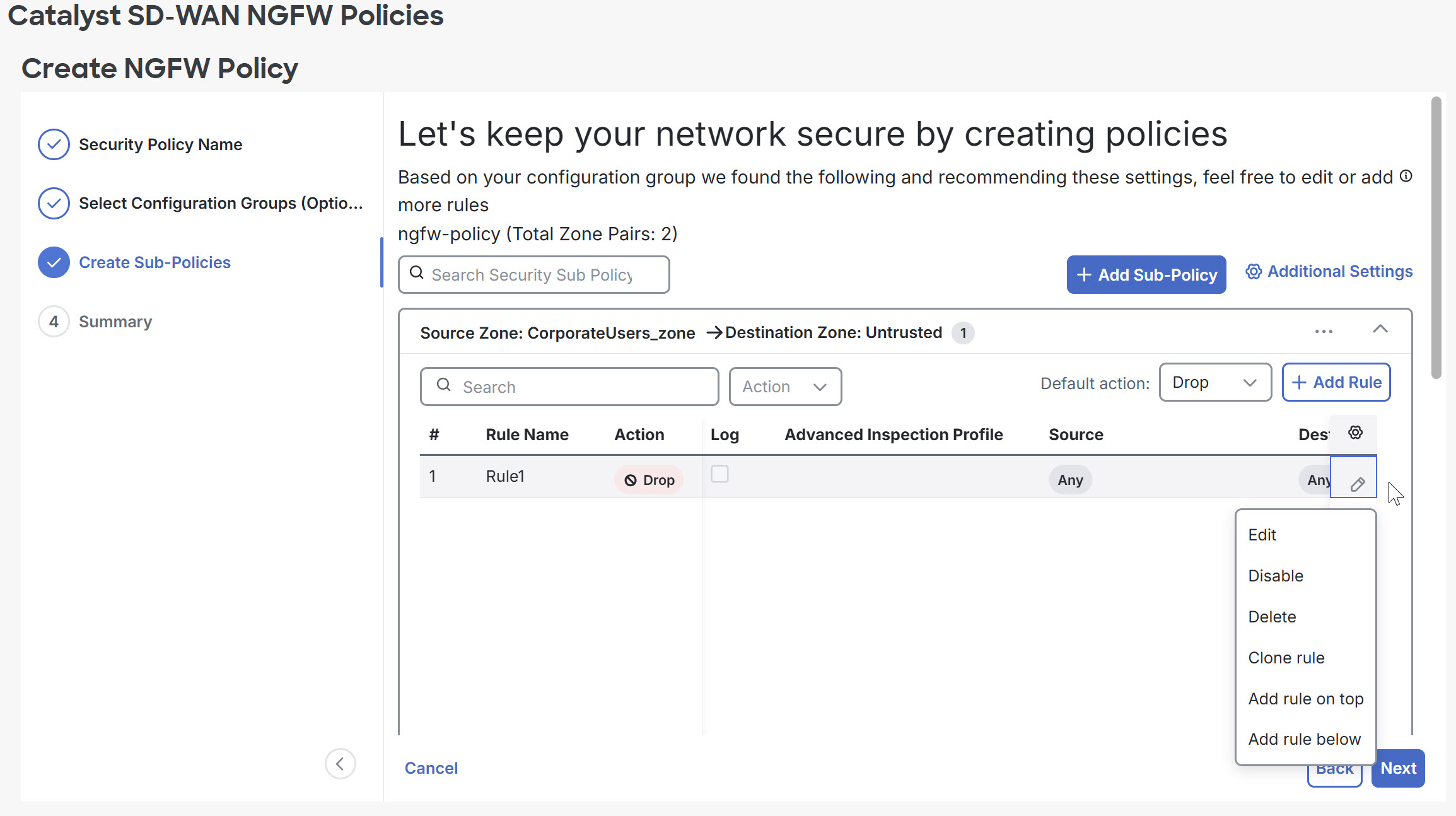
Step 11 | To modify an existing rule, click the pencil icon to Edit, Disable, Delete, Clone rule, Add rule on top, or Add rule below.
| ||||||||||||
Step 12 | Click Next. | ||||||||||||
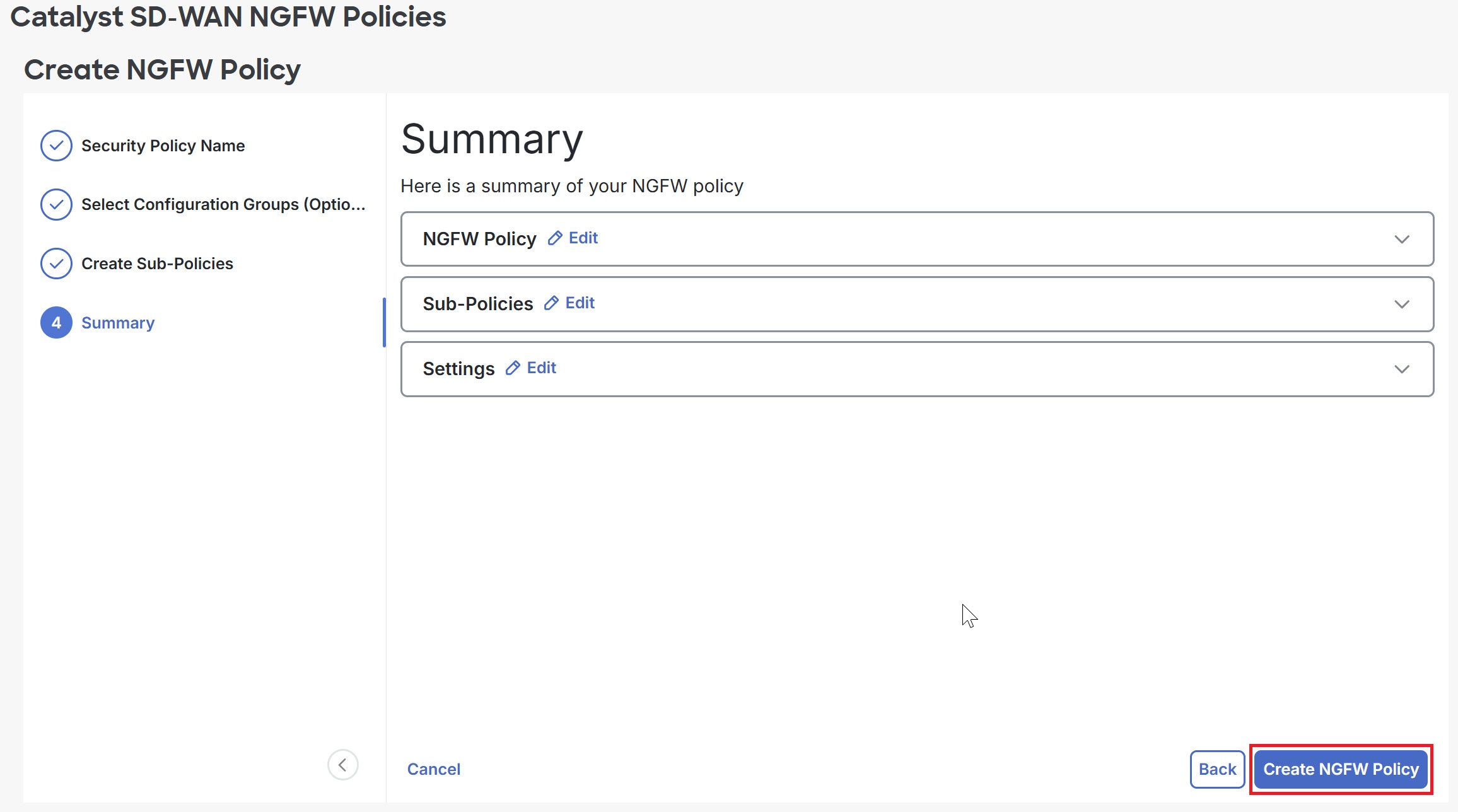
Step 13 | Review the NGFW Policy, Sub-Policies, and Settings on the Summary page, and click Create NGFW Policy.
|
The NGFW security policy is created and available in the Catalyst SD-WAN NGFW Policies list for deployment and management.