Deactivate and Return a Universal Permanent License

Universal License

Supported Devices

Supported Domains

Access

Any

Secure Firewall Management Center

Global only

Admin

If you no longer need a permanent license, you must return it to your Smart Account.

Important

If you do not follow all of the steps in this procedure, the license remains in an in-use state in Cisco Smart Software Manager and cannot be re-used.

Procedure


Step 1

In the Secure Firewall Management Center web interface, choose System > Licenses > Universal Licenses.

Step 2

Make a note of the Product Instance identifier for this Secure Firewall Management Center.

Important

You cannot complete this procedure without this identifier.

Step 3

Generate a return code from Firepower Management Center:

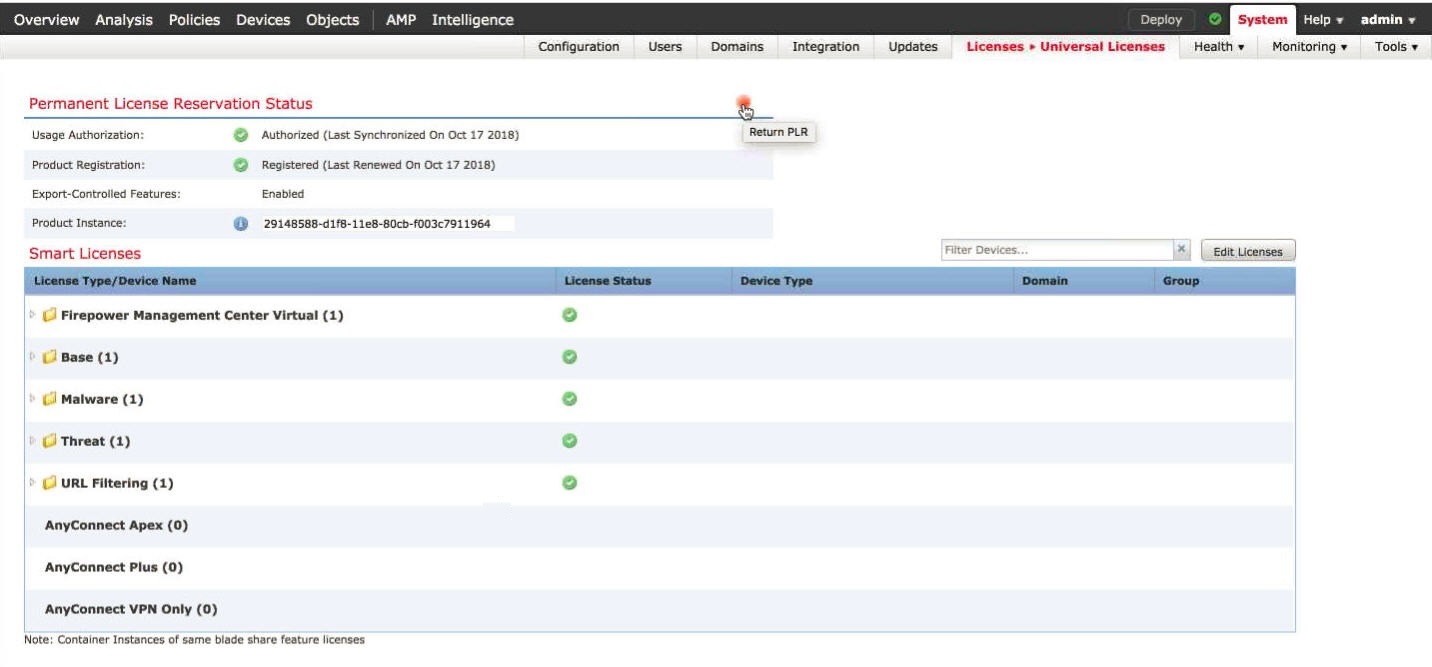
  1. Click the Return PLR button.

    The following figure shows the Return PLR button.

    Firepower Threat Defense becomes unlicensed and Firepower Management Center moves to the de-registered state.

  2. Make a note of the Return Code.

Step 4

In Cisco Smart Software Manager, identify the Firepower Management Center appliance to deregister:

  1. Go to the Cisco Smart Software Manager:

  2. If necessary, click Inventory.

    (This page may display automatically.)

  3. Click Product Instances.

  4. Look for a product instance that has FP in the Type column and a generic SKU (not a hostname) in the Name column. You may also be able to use the values in other table columns to help determine which Firepower Management Center is the correct Firepower Management Center. Click the name.

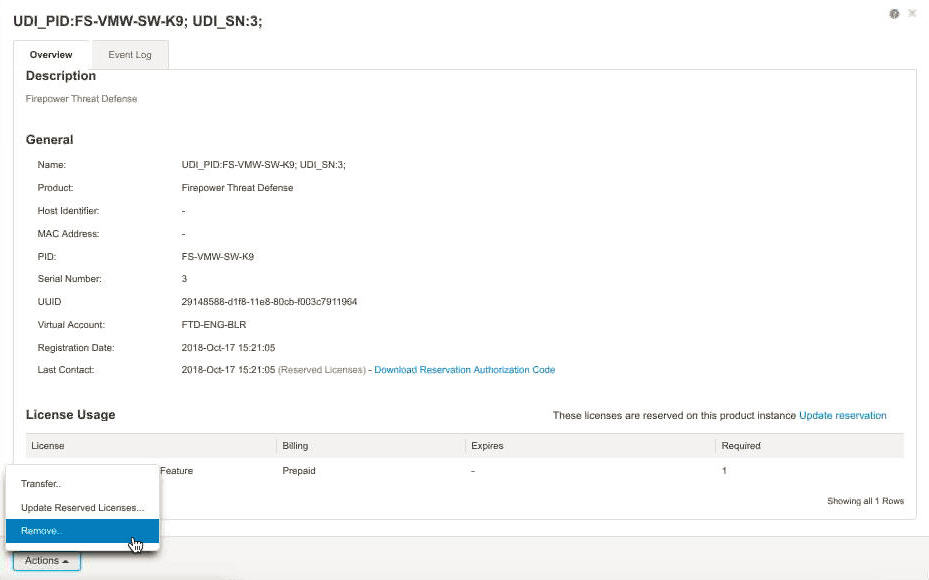
  5. Look at the UUID and see if it is the UUID of the Firepower Management Center that you are trying to modify.

    If not, you must repeat these steps until you find the correct Firepower Management Center.

Step 5

When you have identified the correct Firepower Management Center, return the license to your Smart Account:

  1. On the device page, choose Actions > Remove.

  2. Enter the reservation return code that you generated from Secure Firewall Management Center into the Remove Product Instance dialog box.

  3. Click Remove Product Instance.

    The Permanent License is returned to the pool of available licenses in the Smart Account.

Step 6

Disable the Universal Permanent License in the Secure Firewall Management Center CLI:

  1. Access the Firepower Management Center console using a USB keyboard and VGA monitor, or use SSH to access the management interface.

  2. Log in to the Firepower Management Center admin account.

    FMC versions 6.3 and 6.4: By default, this gives you access to the Linux shell. If the Firepower Management Center CLI is enabled, this gives you access to the command line interface.

    FMC versions 6.5 and later: By default, this gives you access to the command line interface.

  3. If you are in the command line interface, enter the expert command to access the Linux shell.

  4. Execute the following command:

    sudo manage_plr.pl

    Example:

    admin@fmc63betaplr: ~$ sudo manage_plr.plnp
    Password:
    **************** Configuration Utility ************** 
    1 Show PLR Status 
    2 Enable PLR
    3 Disable PLR 
    0 Exit *************************************************************
    Enter choice:
  5. Select menu option 3 to disable the Universal Permanent License.

  6. Select option 0 to exit the manage_plr utility.

  7. Type exit to exit the shell.

  8. If applicable, exit the command line interface:

    Versions 6.3 and 6.4: If the CLI is enabled, enter the exit command.

    Version 6.5 and later: Enter the exit command.


What to do next

(Optional) If you wish to use the system with standard, connected Smart Licensing, see information about Smart Licensing in the Secure Firewall Management Center online help.