Update the Hostname or IP Address in the Cloud-Delivered Firewall Management Center
This task allows you to manually update the hostname or IP address on the managing Cloud-Delivered Firewall Management Center when device network settings have been modified outside of the management interface.
If you edit the hostname or IP address of a device after you added it to the Cloud-Delivered Firewall Management Center (using the device's CLI, for example), you need to use this procedure to manually update the hostname or IP address on the managing Cloud-Delivered Firewall Management Center.
To change the device management IP address on the device, see Modify Firewall Threat Defense management interface settings at the CLI.
If you used only the NAT ID when registering the device, then the IP shows as NO-IP on this page, and you do not need to update the IP address/hostname.
If you used zero-touch provisioning to register the device on the outside interface, the hostname is automatically generated along with a matching DDNS configuration. You cannot edit the hostname in this case.
Procedure
Step 1 | Choose . |
Step 2 | Next to the device where you want to modify management options, click Edit ( |
Step 3 | Click Device and view the Management area. |
Step 4 | Disable management temporarily by clicking the slider so it is disabled Slider disabled ( 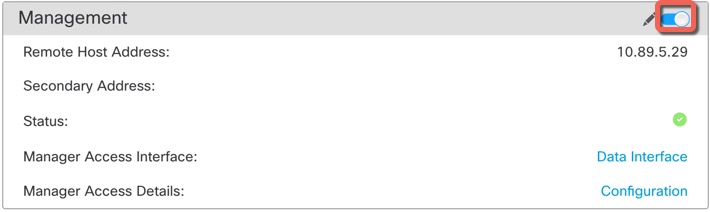
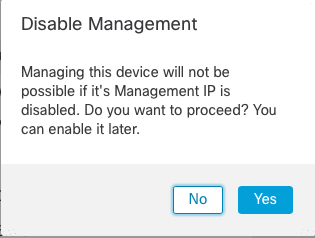
You are prompted to proceed with disabling management; click Yes.
Disabling management blocks the connection between the Cloud-Delivered Firewall Management Center and the device, but does not unregister the device from the Cloud-Delivered Firewall Management Center. |
Step 5 | Edit the Remote Host Address IP address and optional Secondary Address (when using a redundant data interface) or hostname by clicking Edit ( 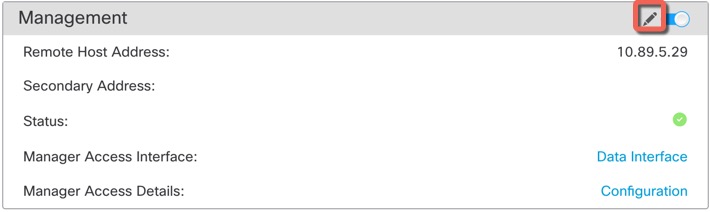
|
Step 6 | In the Management dialog box, modify the name or IP address in the Remote Host Address field and the optional Secondary Address field. Click Save. For information about using a secondary manager access data interface, see Configure a redundant manager access data interface. 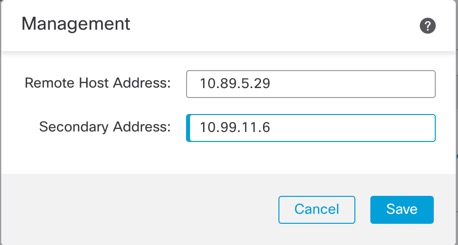
|
Step 7 | Reenable management by clicking the slider so it is enabled Slider enabled ( 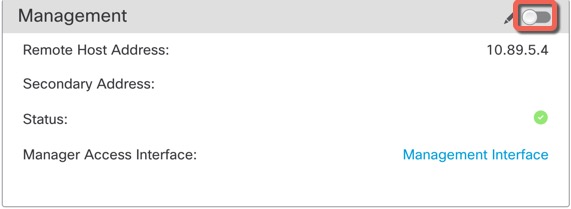
|