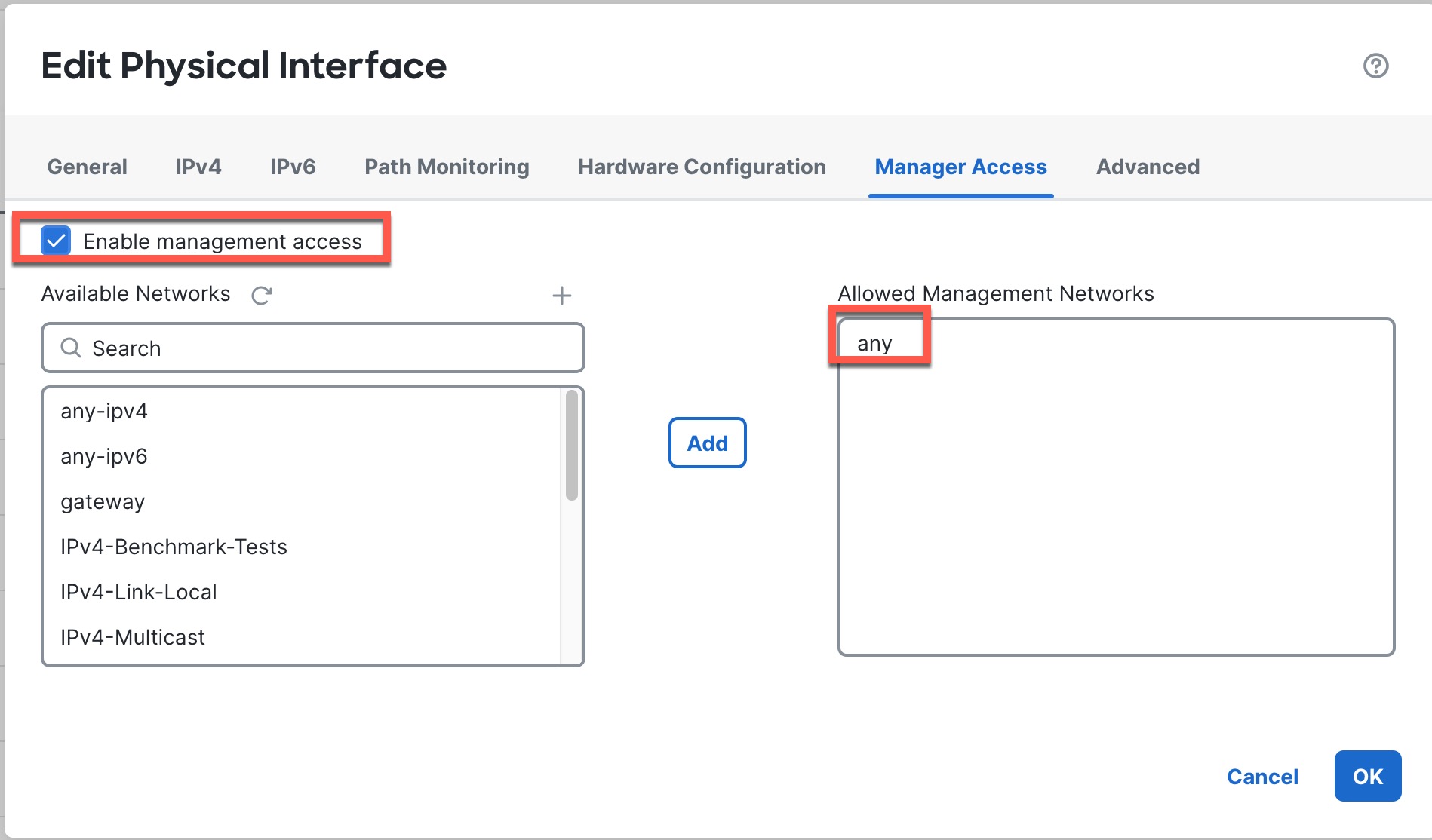
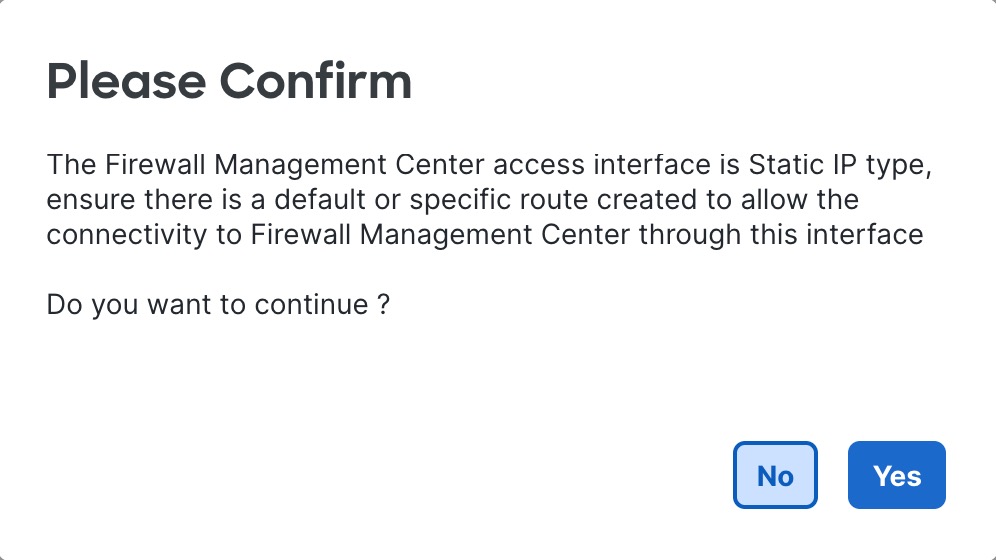
Modify the Firewall Threat Defense data interface used for management in the GUI
Configure the data interface IP address settings to change the management connection or update the interface used for manager access.
If the management connection is up but you want to change the IP address of the data interface used for manager access, follow these steps. For example, if you register a device using zero-touch provisioning, then you need to change the IP address to a static address before you can enable high availability.
You can alternatively change interface settings at the CLI, but we recommend using that method only if the management connection is down. Any changes you make at the CLI should be replicated in the GUI.
Procedure
Step 1 | Choose , and click Edit ( |
Step 2 | Choose . |
Step 3 | If you want to change the interface used for manager access:
|
Step 4 | If you only want to change the IP address:
|
Step 5 | Click the Routing tab, click , and then add or change the default or static route for the manager access interface. |
Step 6 | Deploy configuration changes. The Cloud-Delivered Firewall Management Center will deploy the configuration changes over the current connection. After the deployment, the data interface will have a new IP address, so the management connection will need to be reestablished. |
Step 7 | Update the Hostname or IP Address in the Cloud-Delivered Firewall Management Center. |
Step 8 | Ensure the management connection is reestablished. In the Device area, against the Management field, click Manager Access Details: Configuration and then click Connection Status. The following status shows a successful connection for a data interface, showing the internal "tap_nlp" interface. 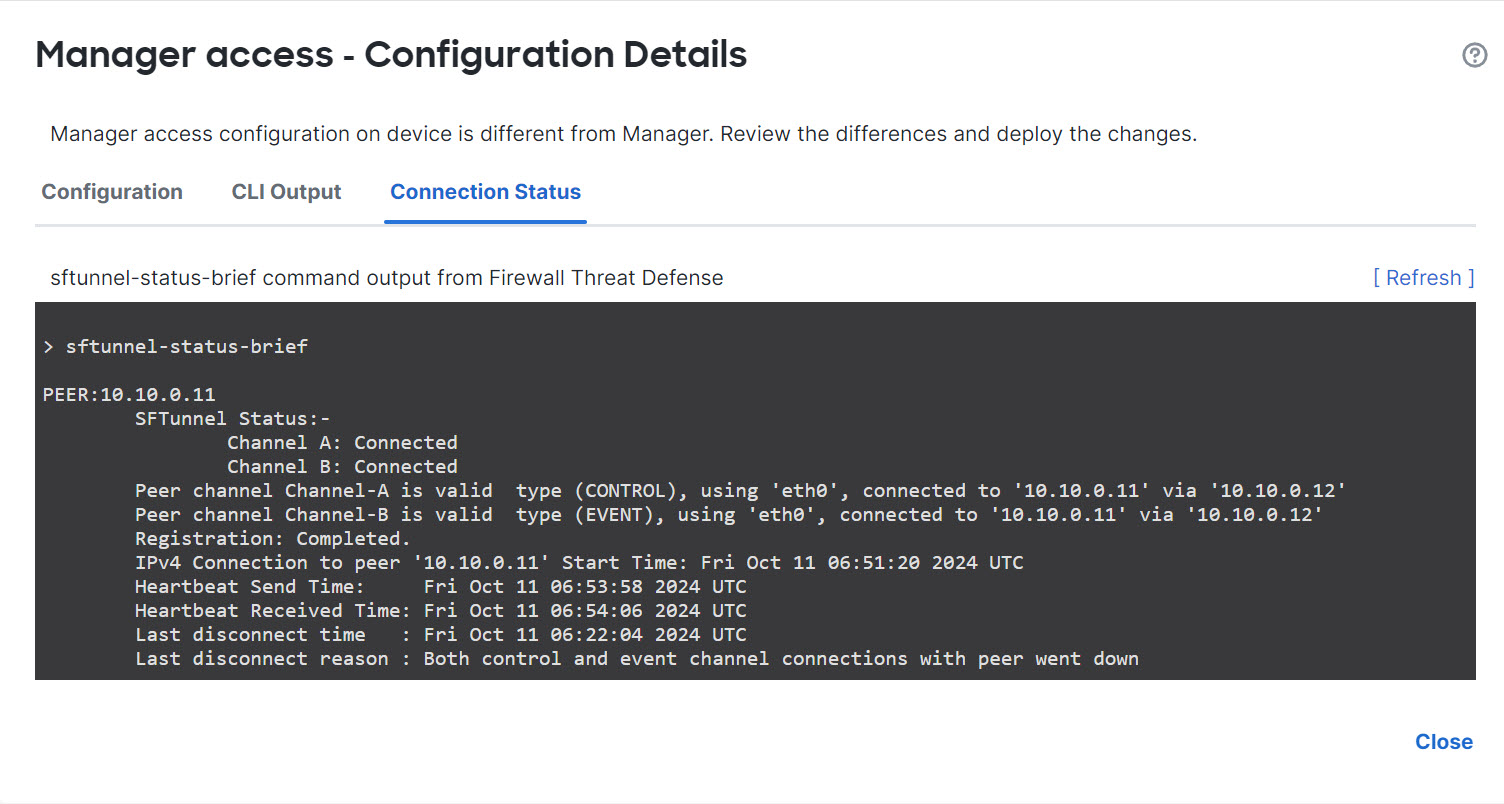
If it takes more than 10 minutes to reestablish the connection, you should troubleshoot the connection. See Troubleshoot Management Connectivity on a Data Interface. |